

Quick answer
Suno v6 can rewrite your Style prompt when Variety is enabled. To keep control of your own style tags, set Variety to 0 before generating, as recommended in the official v6 FAQ. Then compare the generated song’s style information with a saved copy of your input.
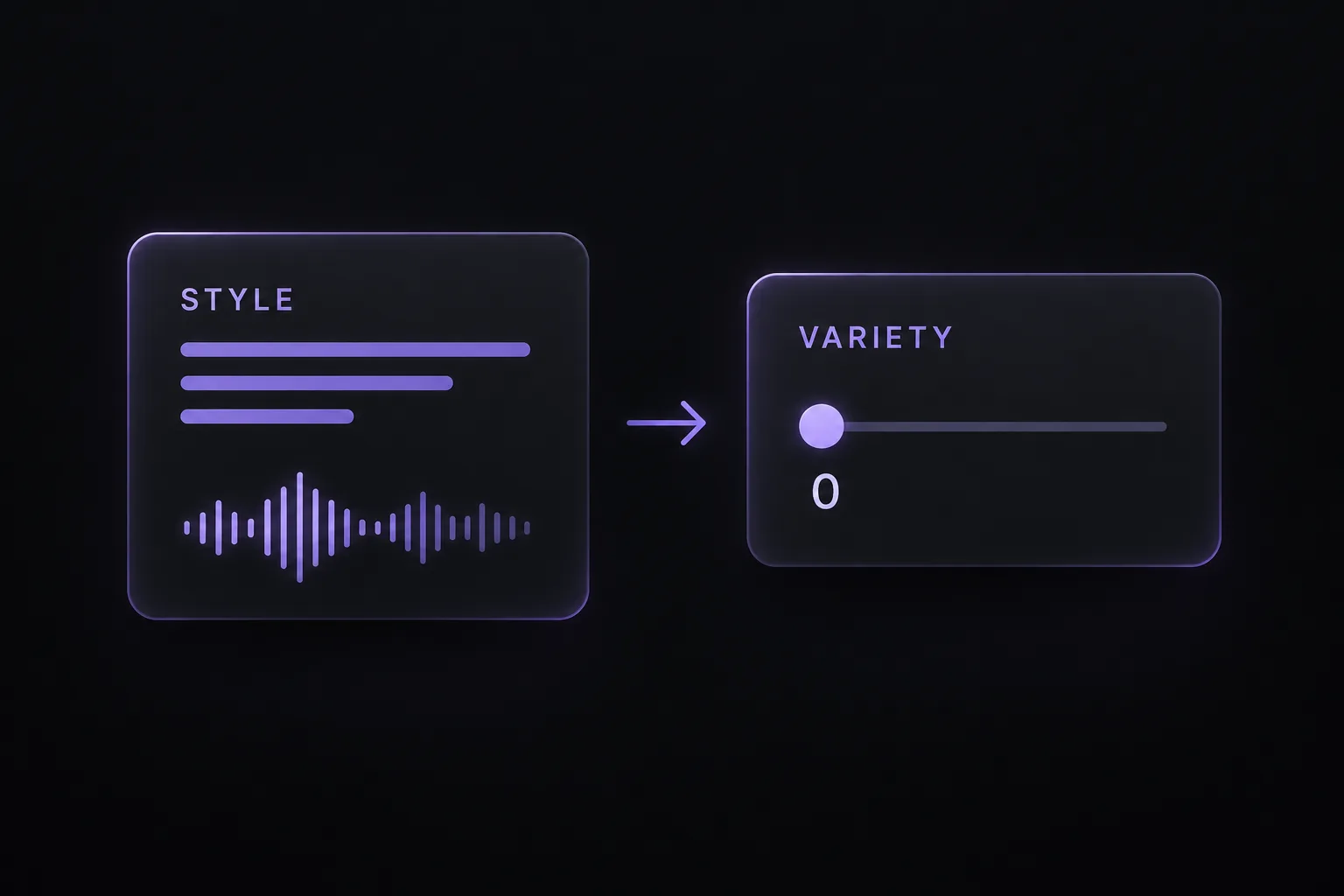
How to stop Suno v6 from rewriting your Style prompt
Use a fresh comparison so you can tell which settings belonged to which generation.
- Step 1: Save your original prompt. Copy the Style text into a note before generating. Keep your lyrics separately if you supplied them.
- Step 2: Set Variety to 0. Check the value on the creation screen before starting the next generation. Suno’s FAQ recommends this setting when you want control over your style tags.
- Step 3: Keep the remaining inputs steady. Use the same model, lyrics and reference material. Record other controls that are available in your interface.
- Step 4: Generate and inspect the song’s style information. Compare it with your saved text. Look for missing instruments, added genres and changes to vocal descriptions.
- Step 5: Listen against a short checklist. Pick two or three important details, such as a dry lead vocal, a steady pulse and a restrained verse. Note which ones you can actually hear.
Check a new generation made after the setting change. Moving the slider does not provide a way to recover an earlier draft of your prompt.
What Variety does in Suno v6
Variety gives Suno room to change the style instructions. That matters when you have carefully specified a vocal delivery, an instrument, or a particular groove: a different description gives you a different starting point for judging the result.
For a first check, separate two questions:
- Did the displayed Style text change? Compare it with a copy of your input.
- Did the music follow the instructions? Listen for the specific features you requested.
Those checks can lead to different answers. A song can show the expected style description and still miss the vocal tone or arrangement you wanted. Matching text is a useful checkpoint; it is not proof of matching audio.
Variety vs. Style Influence vs. Weirdness
Suno documents Style Influence and Weirdness in its Creative Sliders guide. That guide describes controls in Custom mode; use the options actually available in your current interface.
| Control | Documented purpose | When to adjust it |
|---|---|---|
| Variety | Adjusts style prompts to introduce variation. | Set to 0 when Suno rewrites Style text you want to keep. |
| Style Influence | Controls how closely the generation follows the style input, from loose to strong. | Increase it when the music drifts from your intended style; lower it to allow a looser interpretation. |
| Weirdness | Moves between safer and more chaotic results. | Lower it when results feel too unpredictable; raise it to explore more unusual ideas. |
Change one control at a time when diagnosing a problem. If you rewrite the prompt, switch models and move several sliders together, it becomes difficult to identify what helped.
A simple prompt for checking the difference
Choose a description with audible details. “Amazing, emotional, professional” gives you little to compare. An instrument role or vocal delivery gives you something specific to listen for.
Use this original practice prompt to make the comparison concrete. It has not been audio-tested.
Intimate indie pop with a steady mid-tempo pulse. A close, softly sung lead vocal sits above muted electric guitar and a rounded bass line. Keep the verse sparse. Add a light drum groove and a second guitar layer in the chorus while keeping the vocal clear and forward.Start with Variety at 0. Save the resulting style text and listen for three things: a softly sung lead, a sparse verse and a fuller chorus. If you want to explore, run a separate attempt with a higher available Variety setting while keeping the rest of the setup the same.
Keep any useful alternative, but record which setting produced it. One pair of songs is not enough to establish a consistent effect on sound quality.
What to check if Variety at 0 does not solve the problem
| What you notice | Next check |
|---|---|
| Style text still changes after a new generation with Variety at 0. | Confirm the input and settings belong to that song. Save both texts, the song link and a settings screenshot; send that evidence to Suno support if the mismatch repeats. |
| The text matches, but the music misses the brief. | Choose the most important missed detail and make that instruction clearer. Review Style Influence if available. |
| Several generations sound different despite the same text. | Judge each against the same listening checklist. Text control is not a promise of identical music. |
| An old prompt no longer gives the feel you remember. | Write down the traits you liked in the old recording, then describe those traits explicitly in the next attempt. |
When to use Variety
Use 0 as a clear starting point when you are refining a detailed brief or comparing prompt revisions. Consider a higher available setting when your description is only a starting idea and you are willing to explore other directions.
Choose the setting for your current task: a controlled revision or an exploratory idea.
Frequently asked questions
Will Variety at 0 make every generation identical?
No. Suno’s recommendation concerns control of style tags. It is not a guarantee that every note, voice or arrangement will repeat.
Can I recover my original wording from a song link?
Do not rely on a song link as a complete edit history. Keep your own copy before generating. Song details can help you inspect what is available, but they should not be assumed to preserve every earlier version you typed.
What if I cannot find the Variety slider?
Check the creation options available in your current mode and interface. The official FAQ documents Variety, but it does not establish one universal screen location. If you cannot find it, capture your model, mode and screen when asking Suno support for help; do not assume a missing control proves that prompt rewriting has been enabled.
Compare the song’s available style details
Keep your original input beside the song link. Use SunoSaver’s Prompt Extractor to inspect an accessible track’s published details and compare the available style text with your saved note.
The tool shows exposed song information; it cannot recover private details or an earlier prompt that was never published.
Open Prompt Extractor