

Quick answer
Start with a Suno song you like, review its available style descriptions and lyrics, then use what you learn to write a new prompt for your own song. Put musical direction in Style, put your own words and section labels in Lyrics, and change one detail at a time as you refine the result.
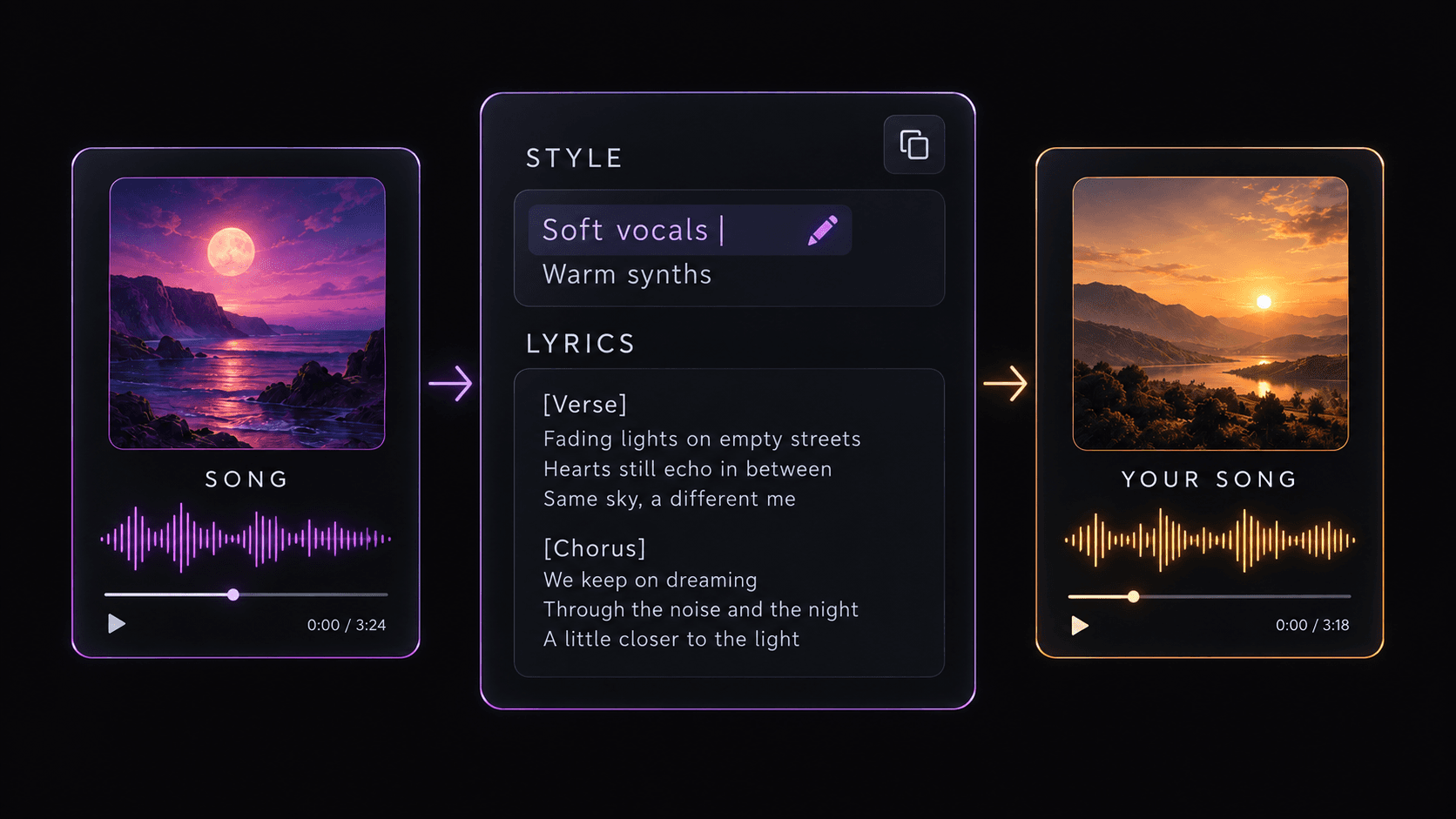
Extract a prompt from a song you like
You hear a Suno track and want to try something with the same energy. Maybe it is the soft vocal over a busy beat, or the way the chorus suddenly feels bigger. You have your own song idea—you just want to understand what instructions might help you get there.
SunoSaver's free Prompt Extractor lets you look up a Suno song's available prompt details from its link. Open the song you want to learn from, copy its link, paste it into the extractor, and choose Extract Song Details. Then use the Copy button beside the style text or lyrics you want to work with.
Copy the Suno song link
Open the song you want to learn from and copy its accessible link.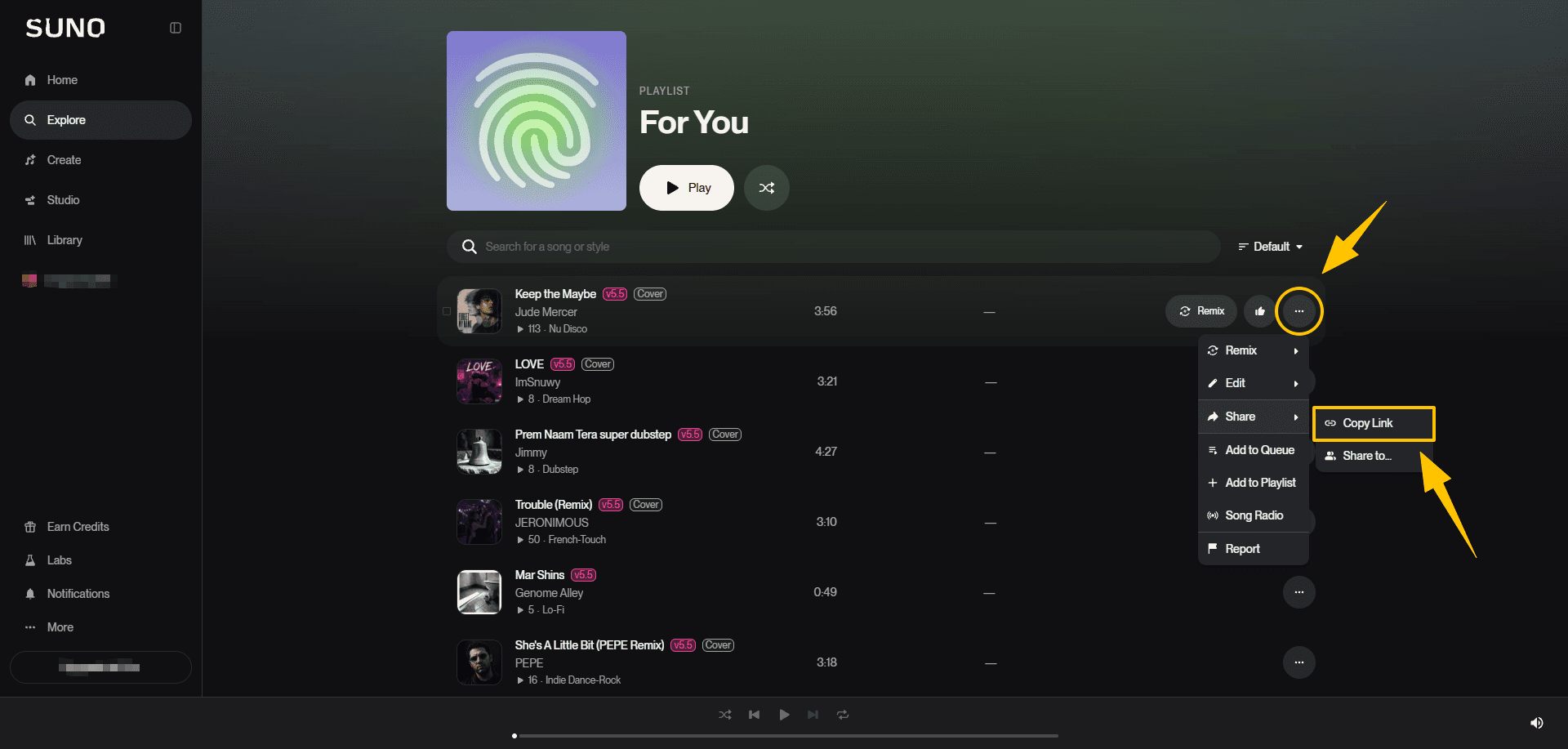
Extract the available details
Paste the link into the Prompt Extractor and choose Extract Song Details.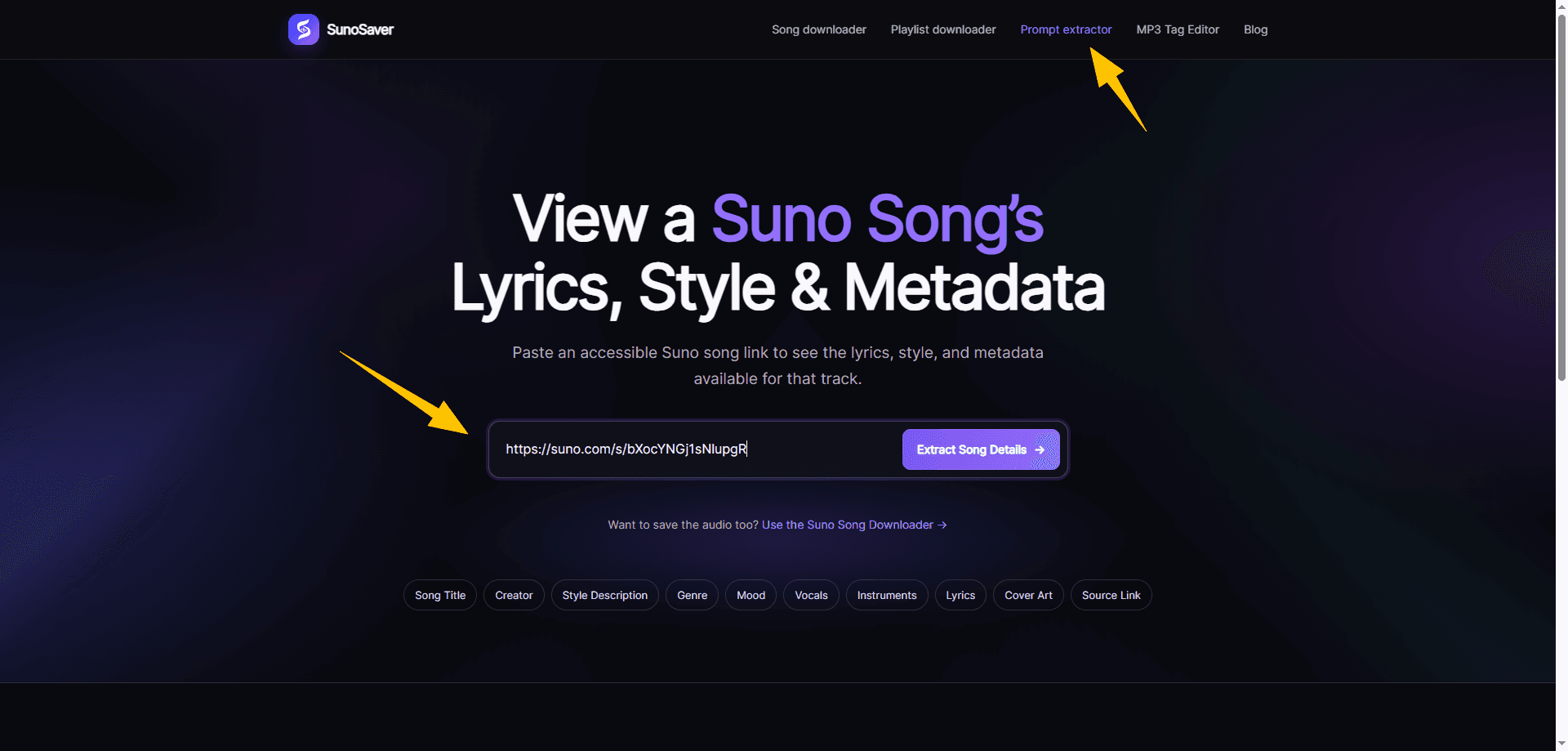
Copy one useful reference
Use the Copy button beside the style text or lyrics that give you a clear starting point.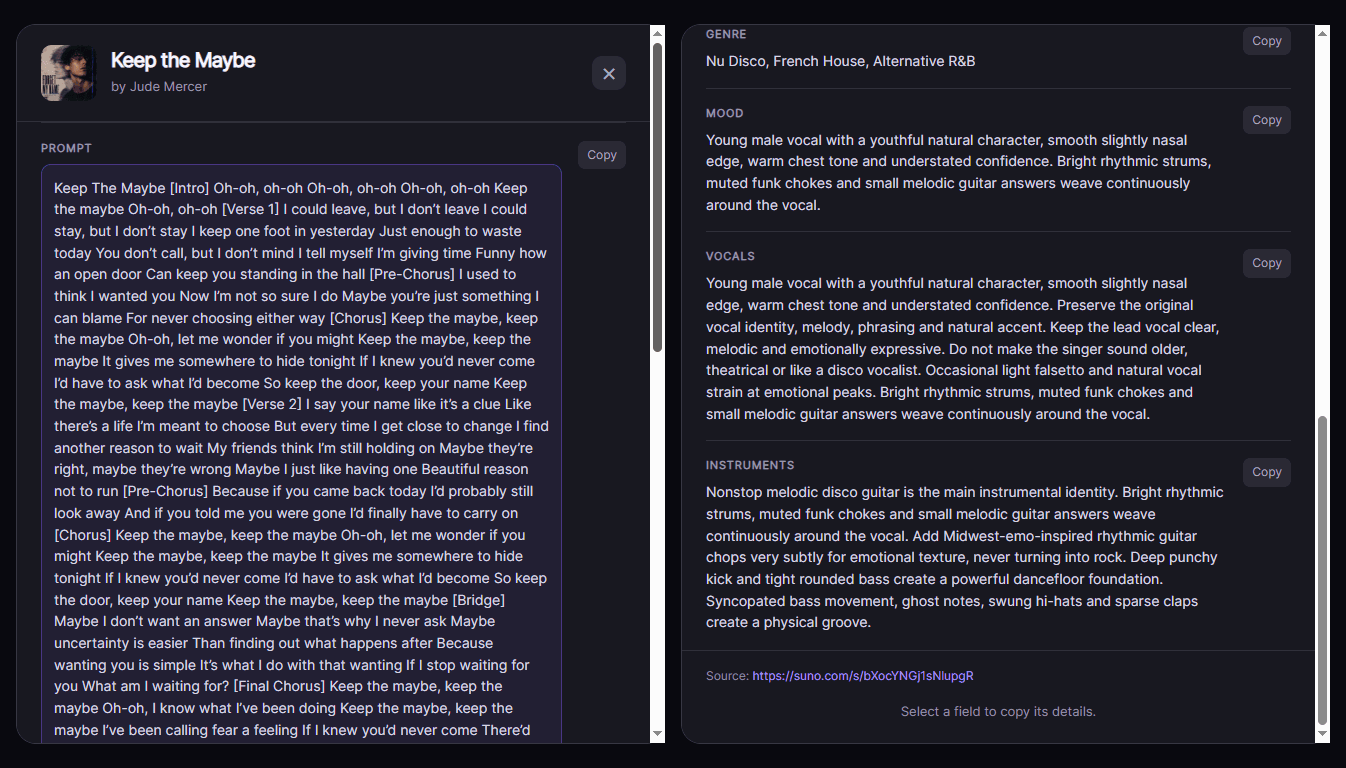
Know where to use the extracted text
The next step is to put each part in the right place. Musical descriptions go in Suno's Style field. Your words and section labels go in Lyrics. In the extraction result, look for style descriptions under Genre; the field labeled Prompt may contain lyrics and labels such as [Verse] and [Chorus].
Keep [Verse] and [Chorus] as a simple outline, then write your own lines beneath them. A description such as “soft vocals” belongs in Style, where it tells Suno how you want those lines delivered.
| What you find | Put it in | How to use it |
|---|---|---|
| Genre, mood, vocal delivery, instruments, or production direction | Style | Keep the musical direction that interests you, then rewrite it for your own song. |
| Words, [Verse] and [Chorus] labels, or a lyrical outline | Lyrics | Keep the section structure if it helps, but write lines that express your own idea. |
Make the prompt fit your song
Choose the part you want to borrow: the groove, the vocal delivery, or the mood. Keep that direction, then change the details around it to suit your idea.
Say you found “synth-pop, soft vocals, energetic drums,” but you want something calmer. Keep the soft vocal and change the rhythm: “Synth-pop with a soft lead vocal, warm synth pads, and a restrained drum groove. Keep the verses intimate; add brighter harmonies in the chorus.”
Now the prompt has a clear direction: softer drums, the same gentle vocal feel, and a lift in the chorus. Pair it with your own lyrics and you are ready to try it.
- For a different mood, change “upbeat and playful” to “reflective and understated.”
- For a different texture, swap “bright acoustic guitar” for “warm synth pads.”
- For more contrast, ask for a quiet verse and a fuller chorus.
Generate a track and refine one thing
Focus on the change you asked for. In the example above, are the drums softer? Does the chorus feel fuller than the verse? If the drums still overpower the vocal, try “light percussion with no heavy drum fills” and keep the rest of the prompt unchanged for your next attempt.
Save the prompt with the version you like. Next time, you will have a starting point of your own—and a better sense of which words to change.
Open Suno Custom mode
Start a new song in Suno's Custom mode.Add the revised musical direction
Paste your revised description into Style.Write your own lyrics
Add your words to Lyrics, using [Verse] and [Chorus] above the matching sections.Create and listen
Generate the track, then assess only the change you asked for before revising again.
Frequently asked questions
Can I copy a Suno prompt exactly?
You can use available details as a reference, but a stronger result comes from adapting the musical direction and writing your own lyrics and choices around it.
What belongs in Suno's Style field?
Use musical direction such as genre, mood, vocal delivery, instruments, arrangement, and production character in Style.
What belongs in the Lyrics field?
Put your own words and structural labels such as [Verse] and [Chorus] in Lyrics.
Next step
Try it with a song you love
Paste an accessible Suno song link into the Prompt Extractor, then use one musical idea to shape your next track.
Open Prompt Extractor