

The song plays, but your music library still shows a blank square. You have the cover image on your computer—now you need to attach it to the MP3.
Quick answer
Open the MP3 in a tag editor, choose an image under Album cover, and click Save to download the updated file. The picture is stored inside the MP3's tags, so you can copy the file without carrying a separate image alongside it.
Here's how to do that with SunoSaver's free editor, and what to check if your player still shows the old artwork.
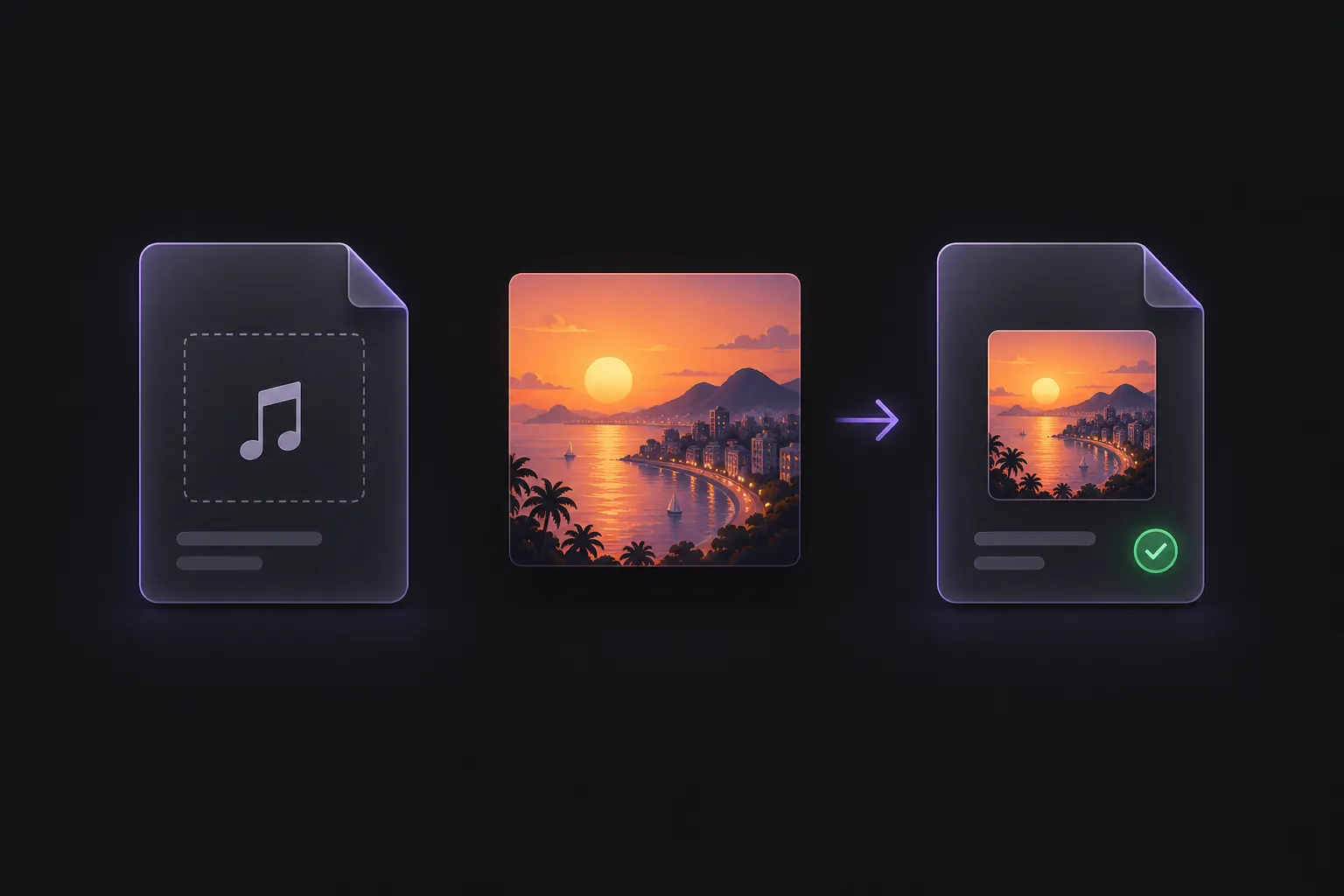
Have your MP3 and cover image ready
Use the MP3 you want to keep and a picture you created or have permission to use. A square image is a convenient choice for the album tiles in a music library; keep important details away from the edges in case your player crops the preview.
Start with a JPG or PNG. The ID3 specification recommends these formats for compatibility. You don't need an enormous image for a small album thumbnail. If you're preparing a file for a particular portable player, check that device's artwork requirements before choosing the image size.
Add the cover in SunoSaver
Step 1: Open your MP3
Go to SunoSaver's MP3 Tag Editor. Drop your file into Add an audio file, or click to choose it.
Existing details appear in the form when they can be read. Check Title before saving: if it's empty, enter the song's name. You can leave the other visible fields as they are if the cover is all you want to change.
Step 2: Choose the artwork
Scroll to Album cover and click Choose cover artwork. Select your image. Its filename and preview appear below the field, so you can check that you've picked the right picture before saving.
If the MP3 already contains artwork, the field may read Cover artwork found in this file instead. Click that field to choose a replacement.

Step 3: Save the MP3 with its cover
Click Save and wait for the download to finish. This exports an MP3 with the edited tags—it doesn't just save the picture separately.
Open the new file from your browser's downloads list. The filename can follow the Title field rather than the original filename, so check the latest download instead of reopening the source by habit.
Step 4: Check the saved file
Open the downloaded MP3 in your music player and check its cover. If the artwork appears as expected, you're done.
Why is the album art still missing?
If the cover is blank or outdated, add the downloaded MP3 back to SunoSaver to check whether the image is stored in the file.
No artwork is stored in the MP3
If Album cover still says Choose cover artwork, select your image and save again. Keeping a cover.jpg beside the song isn't the same as embedding it in the MP3.
The file has artwork, but the player doesn't show it
If SunoSaver says Cover artwork found in this file, check that your player is using the new download, then reopen the app or refresh its library. If the cover still won't display, check the player's supported image formats, dimensions, and tag versions; a smaller JPG may help with a device's image limits.
For more on how players read these details, see ID3 Tags Explained.
Frequently asked questions
Can I add the same cover to several MP3s at once?
SunoSaver currently edits one MP3 at a time. Batch editing is in development. For now, repeat the steps for each song that needs the cover.
Add a Cover to Your MP3
Give your song a recognizable cover with SunoSaver's free MP3 Tag Editor.
Open MP3 Tag Editor