

Quick answer
Upload the MP3 to an online tag editor, update the fields you want a player to display, choose cover artwork if needed, and save the edited file. Start with title, artist, album, and cover art; add track number, year, genre, lyrics, or composer only when they help you find the file again.
What editing metadata changes — and what it does not
The song may be exactly what you wanted. Then you add it to a music player and see “Unknown Artist,” a generic filename, or a blank square where the cover should be. That is usually a metadata problem, not an audio problem.
MP3 metadata is the information a player uses to label and organize a file. It can tell a player what to call the song, who to group it under, where to place it in an album, and which image to display. It is especially helpful when several versions of the same idea have similar filenames.
It does not rewrite the composition, repair the mix, or establish who owns a song. Think of it as putting a clear label on a finished file, not changing what is inside the recording.
Start with the four fields people actually notice
Those four fields are enough for most single songs. Track number and year become more useful when you are organizing a sequence. Genre, composer, and lyrics are worth adding when you genuinely use them to search, sort, or share the file.
| Field | Why it matters | A practical approach |
|---|---|---|
| Title | This is the name most players show first. | Use the version you would recognize in a month, not a temporary export name. |
| Artist | Players commonly group songs by artist. | Use one consistent project, artist, or creator name across related files. |
| Album | It keeps a set of songs together in a library view. | Use a project or collection name when songs belong together; leave it intentional rather than filling it with a placeholder. |
| Cover art | It makes a file easier to spot in a grid or mobile player. | Choose artwork you are allowed to use and that still looks clear at a small size. |
How to edit MP3 metadata in SunoSaver
The easiest time to do this is right after you decide a version is worth keeping. You still remember what the file is, and you are less likely to create a folder of nearly identical tracks that need to be decoded later.
The current editor is designed for one MP3 at a time. That makes it easier to check the details for the specific version you are keeping before you save it.
Add the MP3 file
Open the MP3 Tag Editor and add the song you want to organize. If tag details are already present, review them before replacing anything.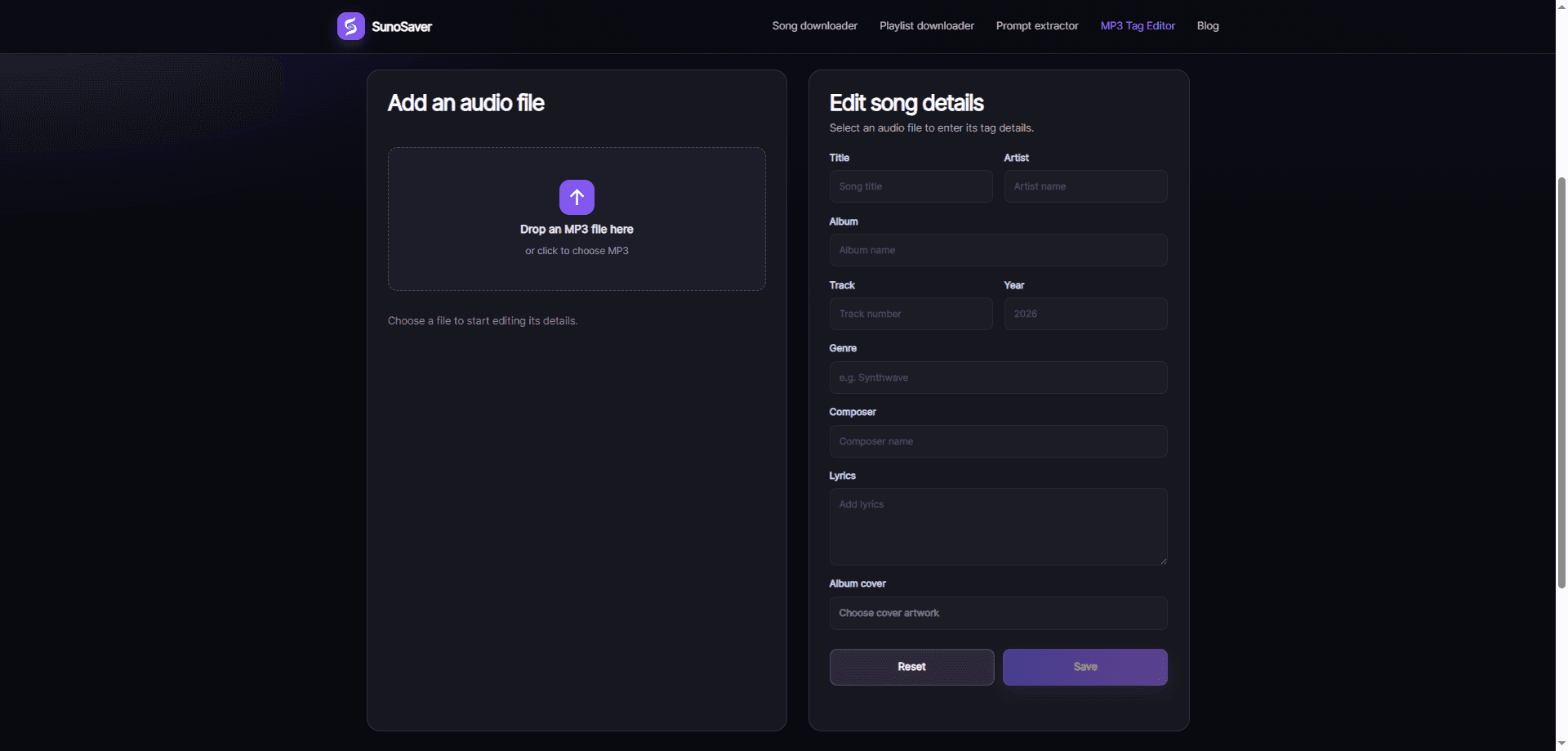
Give the song a clear title
Remove export-style names such as “final-final-2” when they no longer help. If it is still a draft, use a meaningful label such as “Midnight Drive — vocal draft.”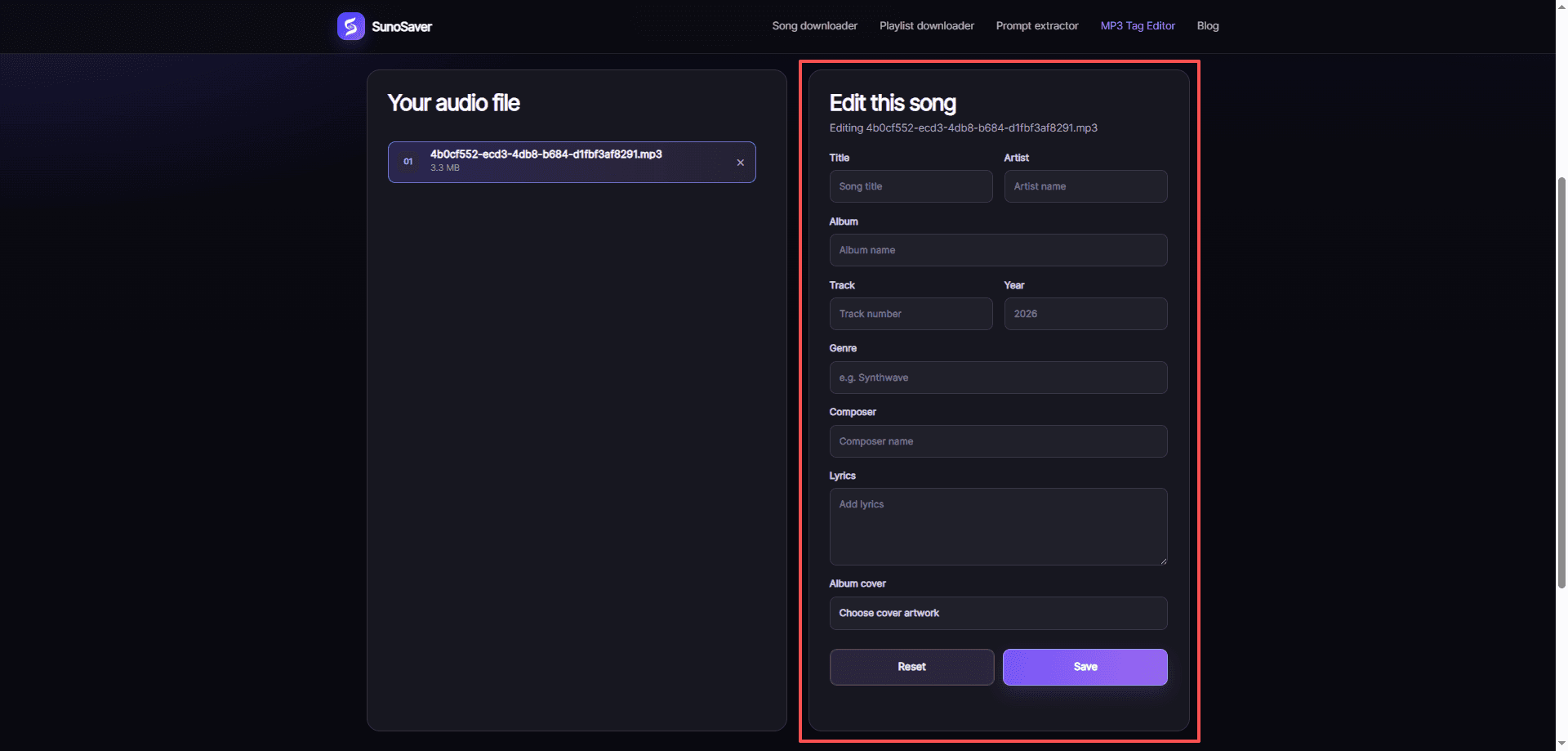
Set the artist and album deliberately
Consistency matters more than perfect wording. Related files become easier to browse when they use the same artist and album values.Add cover artwork when it helps identification
Pick an image you are allowed to use, then make sure it represents the song or collection clearly.Fill in useful supporting details
Add track number, year, genre, composer, or lyrics when they support how you organize the work. Do not turn this into data entry for its own sake.Save the edited file and check it once
Open the saved MP3 in the player you use most and confirm the title, artist, album, and artwork appear as expected.
A small naming decision can save a lot of time later
There is no universal way to name a draft. What matters is whether future-you can tell files apart without opening all of them. A simple pattern is enough: song title — version or purpose.
For example, “Paper Skies — acoustic mix” tells you more than “audio_03.” If two versions are still under review, keep the difference in the title or filename until you have chosen a final one. Once the selection is final, simplify the visible title and keep extra context in your project folder or notes.
The same principle applies to album names. A collection called “September demos” is useful while you are reviewing work. A release-ready group may need a more stable project name. Metadata works best when it reflects the stage the music is actually in.
When cover art does not appear
A cover can be embedded correctly and still fail to appear immediately in every player. Some apps hold on to an earlier library view, and different players do not always refresh at the same moment.
- Open the saved MP3 in a second player or file viewer.
- Make sure you are looking at the saved file rather than the original file.
- Close and reopen the music app if it is still showing older details.
- Confirm that the image is one you are allowed to use for the song or collection.
Keep metadata useful, not exhaustive
It is tempting to fill in every available field. Usually, the better goal is to make your library understandable. For most independent projects, that means a clear title, a consistent artist name, an intentional album or collection name, and recognizable artwork.
Then add the fields that support your own workflow. If you search by genre, add genre. If lyrics help you distinguish versions, save them. If you never use a field, leaving it blank is often cleaner than inventing information you will not trust later.
- The title identifies this exact version.
- The artist and album are consistent with related songs.
- The cover is intentional and permitted for your use.
- The saved file displays correctly in at least one player.
After you save the file
Metadata is most useful when it is part of a small routine. Keep the source link or project note near the file, use a sensible folder name, and label the version before the details fade from memory.
If the MP3 came from a song you created or are authorized to save, this gives you a cleaner starting point for listening, reviewing, or preparing a collection. For a group of tracks from one accessible collection, use the Playlist Downloader to choose the songs you want to keep first.
Frequently asked questions
Will editing MP3 metadata change how the song sounds?
Metadata describes the file for a player. It is separate from the musical decisions you made in the song itself.
Do I need an album name for a single song?
Not always. Use one when it helps you group a project, release, or collection. A blank field is better than an album name that creates confusion.
Can I edit tags for several MP3 files at once?
Not yet. The current editor is for one MP3 at a time. Batch editing is in development; until it is available, save and check each file separately.
Does adding metadata prove I own the song?
No. File labels make a collection easier to organize; they do not establish ownership, licensing, or permission to use the music.
Next step
Give the version you keep a clear identity
Open the MP3 Tag Editor to update the details your music player will display.
Open MP3 Tag Editor