

You rename an MP3, open it in your music player, and there it is: the old song title. The filename looks right. The track still plays. So why hasn't the name changed?
The player may be showing the title stored inside the file, not its filename. Those internal details are called ID3 tags. They give a compatible player information such as the song title, artist, album, and cover art.
Once you know which detail controls what, you can stop renaming the same file and change the information that actually needs fixing.
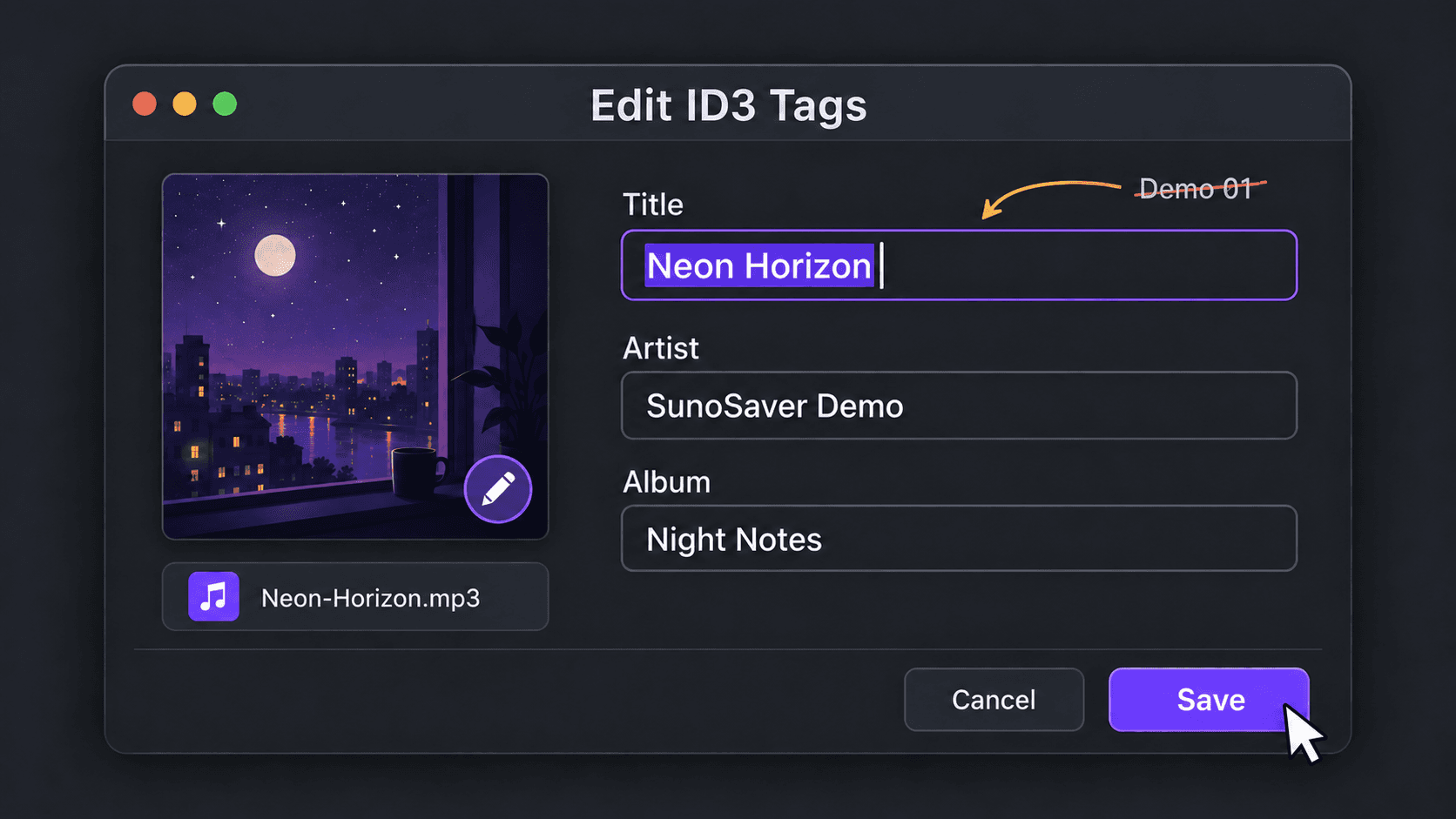
Why doesn't the displayed title match the filename?
A file named Midnight-Window.mp3 can still have Demo 01 stored in its Title tag. A player using that tag can show “Demo 01” even though the filename has changed.
Open the file in a tag editor and compare the filename with the Title field. If the field contains the old name, that's the detail to update. If it's empty, check how your player handles missing titles; don't assume every app uses the same fallback.
Replace “Demo 01” with “Midnight Window” in the Title field. There's no need to rename the file again to make that tag change.
Why can the same MP3 look different in another player?
A player's screen isn't necessarily a complete readout of the file's tags. It may also use information saved in its own library or artwork retrieved separately.
For example, Music on Mac lets you retrieve album artwork. Seeing a cover in one app therefore isn't enough to tell you whether that image is embedded in the MP3 you're transferring.
If two apps disagree, check these possibilities:
- Different copies: one app may still be opening the original file rather than the newly exported MP3.
- Library information: the app may need to reread the file's tags. Look for its refresh, rescan, or reload-metadata option.
- Tag support: players differ in the fields and ID3 versions they support. For an older device, check its documentation before changing tag versions.
- Separate artwork: a cover saved in an app or alongside the MP3 is not necessarily embedded in the audio file.
How ID3 Tags Work in an MP3 File
Open an MP3 in the free SunoSaver MP3 Tag Editor to see the details stored inside it. Below, the track starts with the title “Demo 01”; after editing and saving, the exported file contains “Midnight Window” along with its updated artist, album, and cover art.
Open the MP3 and check its existing details
Choose your MP3 or drop it into the editor. Compare the filename on the left with the Title, Artist, and Album fields on the right.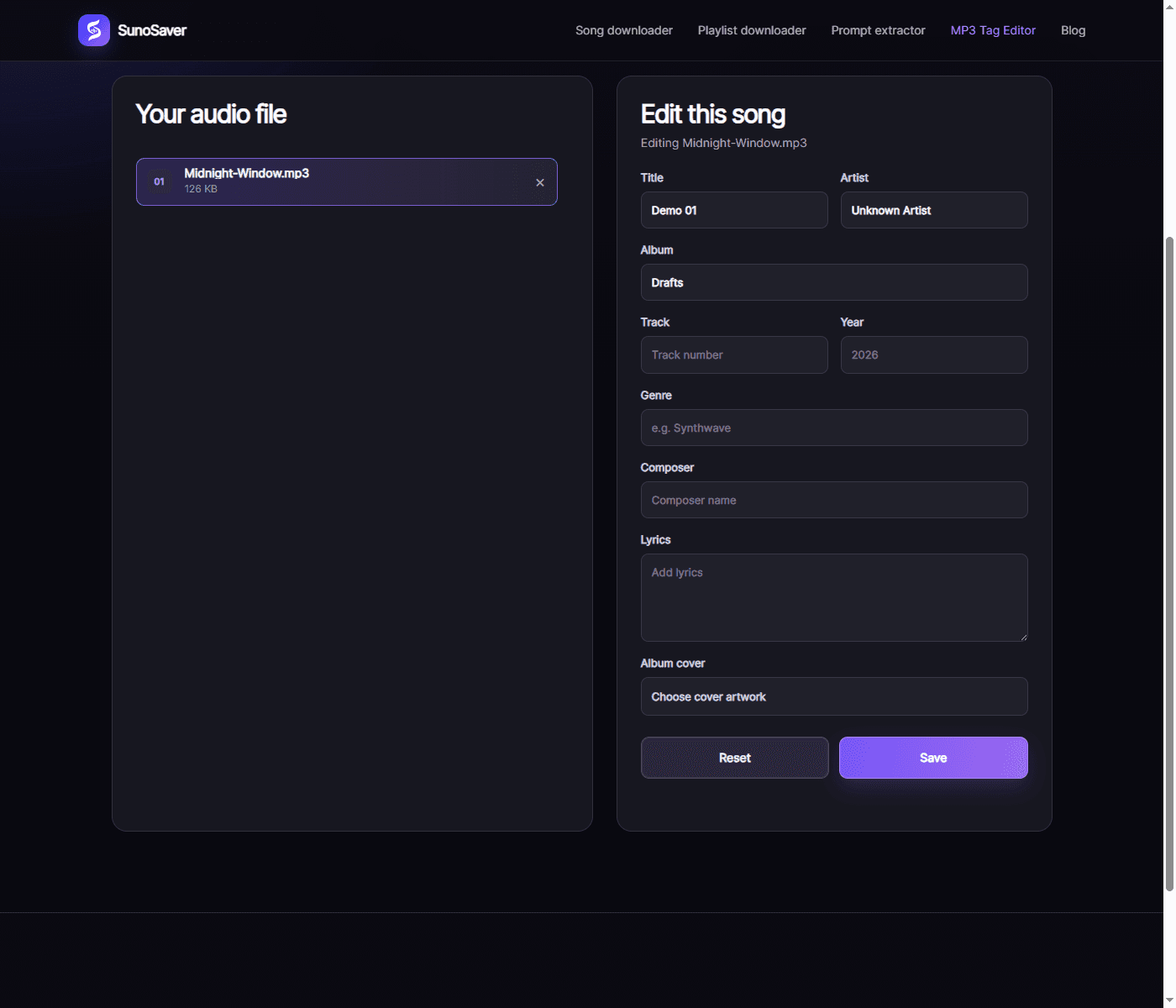
The file is named Midnight-Window.mp3, but its stored title is Demo 01.Change the details and choose a cover
Update the title, artist, and album to match your track. The fields below show Midnight Window, SunoSaver Demo, and Night Notes. Add the track number and year if you need them. Click Choose cover artwork to select an image.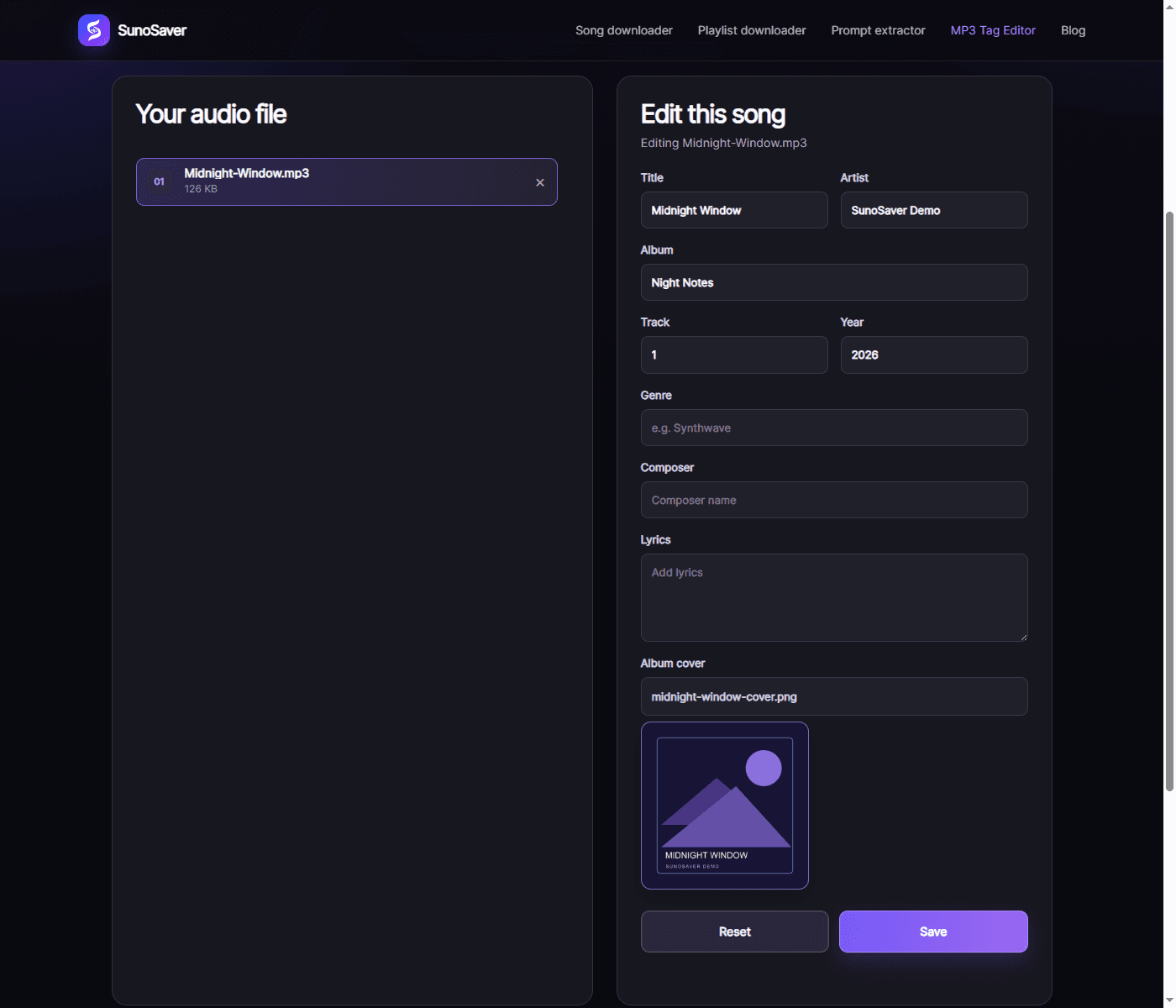
The new details and selected cover are ready to save. Save, then open the exported file
Click Save to download the MP3 with your edits written into it. Open the downloaded copy in a fresh editor session to check the result. The saved title, artist, and album now appear, and the editor reports “Cover artwork found in this file.”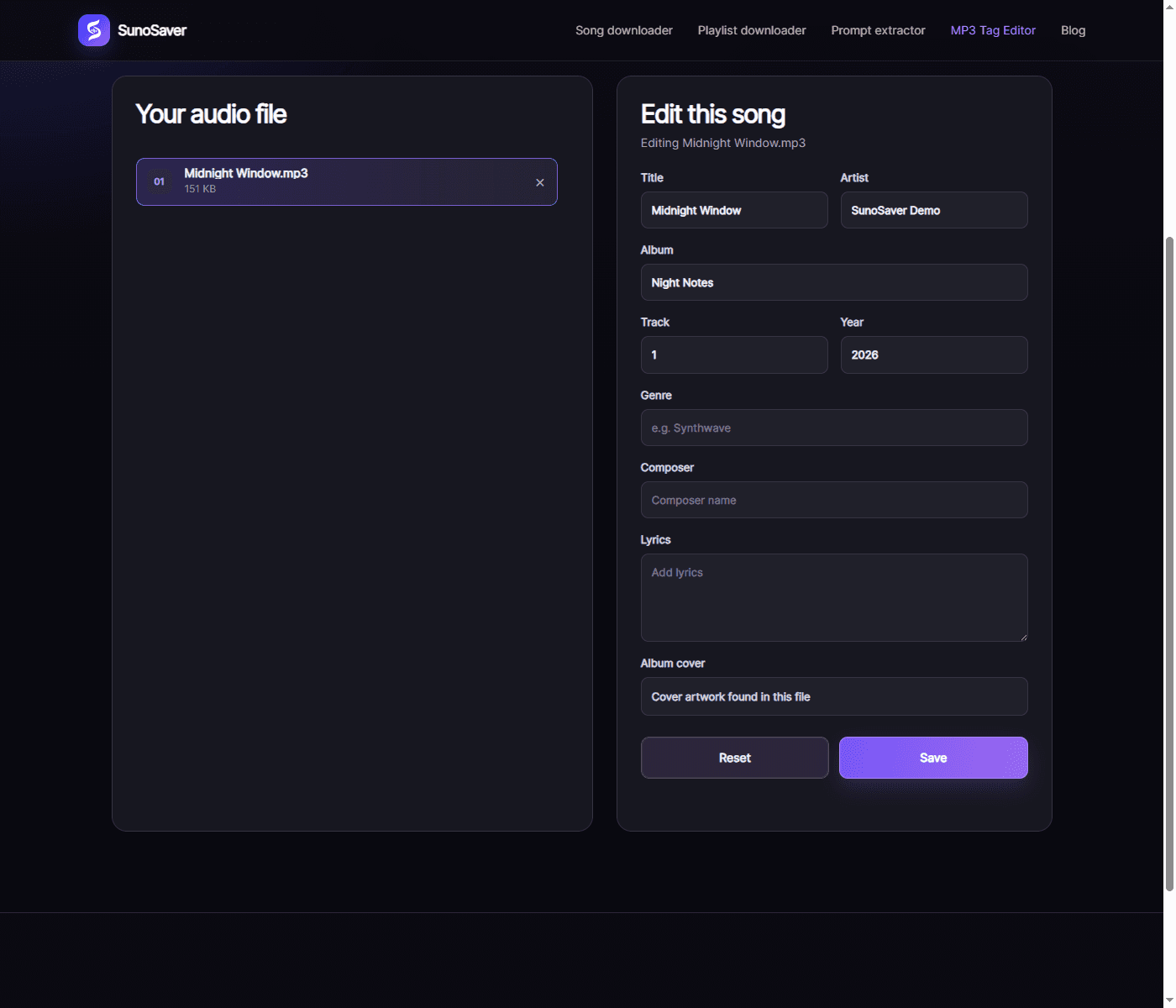
The exported MP3 reopened in SunoSaver, showing the saved details and detected cover artwork.
Then open that same copy in your music player. For the full editing walkthrough, see How to Edit MP3 Metadata Online.
Conclusion
A filename helps you find an MP3 in a folder; its ID3 tags help a compatible music player identify and organize the track. Changing the filename alone does not update the title, artist, album, or cover art stored inside it.
If a song still appears incorrectly, check its tags, save the changes, and reopen the exported copy. If the tags are correct but the player still shows old information, check which file it is reading and whether its library needs refreshing. The goal is to fix the track's details, not alter its sound.
Edit Your MP3 Tags for Free
Still seeing the wrong title or missing cover art? Open your MP3 in SunoSaver's free Tag Editor, update its details, and click Save to download the edited file.
Open MP3 Tag Editor