
To check a Suno MP3’s bitrate, open the downloaded file in Windows Properties or MediaInfo and look for Bit rate. The value tells you how much audio data the file uses per second, usually in kbps.
Suno’s download guide lists the available formats but does not specify a single bitrate for all MP3 downloads. Checking your file gives you a value for the version you actually saved.
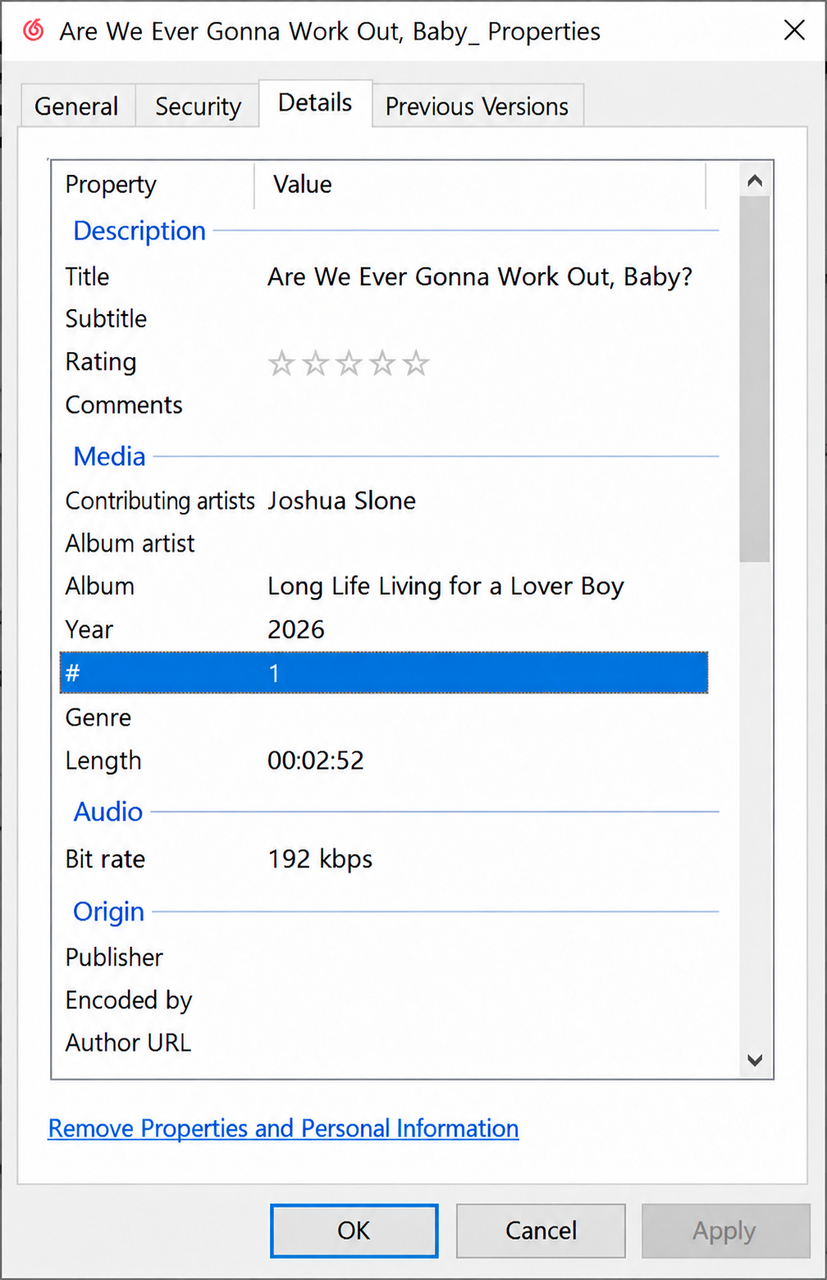
On Windows: use File Properties
- Find the MP3 in File Explorer.
- Right-click it and select Properties.
- Open Details and find Bit rate in the Audio section.
For example, a reading of 192 kbps means the reported bitrate is 192 kilobits per second. If the field is blank, use MediaInfo for more detail.
On Windows or Mac: use MediaInfo
Open your MP3 in the desktop version of MediaInfo. Switch to Text or Tree view and find the Audio section.
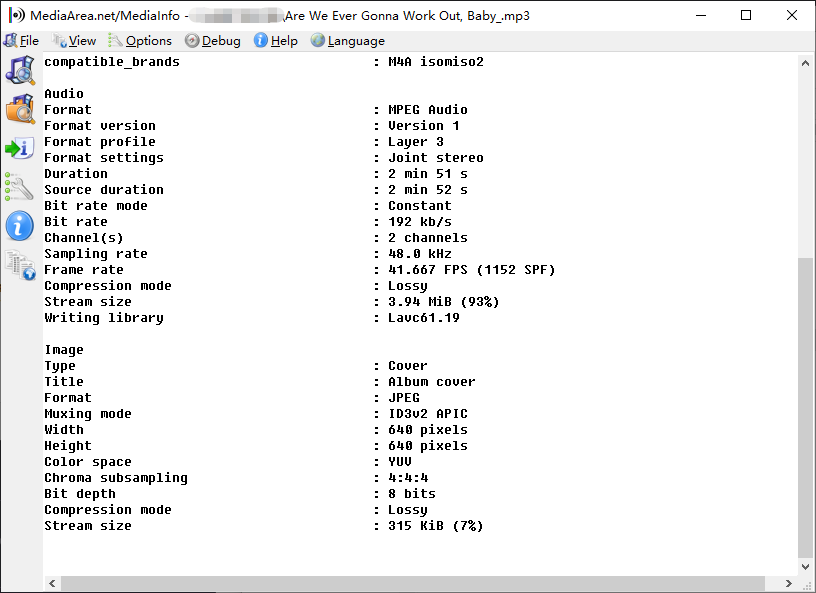
These fields describe different properties of the file:
| Field | Example | What it means |
|---|---|---|
| Bit rate | 192 kb/s | The reported audio data rate. |
| Bit rate mode | CBR or VBR | Whether the bitrate stays constant or varies during the song. |
| Sampling rate | 48.0 kHz | The number of audio samples per second, per channel—not the bitrate. |
| Channel(s) | 2 channels | The number of audio channels. |
The values above are examples, not specifications for Suno downloads. Field names and availability can vary by file and MediaInfo version. See MediaInfo’s field reference for the definitions.
Why the bitrate may not be a round number
A variable-bitrate MP3 uses different data rates throughout the song. A file inspector may therefore show an average rather than a value such as 192 or 320 kbps. Check Bit rate mode when it is available; a non-round number alone does not establish that the file uses VBR.
Does 320 kbps mean better sound?
A 320 kbps reading describes the saved file’s encoding. It does not show whether that file was previously converted from a lower-bitrate source. Re-encoding an MP3 at a higher bitrate cannot restore audio detail lost earlier.
Use the reading to understand the file, and listen to the track to judge how it sounds. For help choosing a download format, see our Suno MP3 vs WAV comparison.
Download Your Suno Music
Save your Suno song as an MP3, then check its bitrate on Windows or Mac.
Download Suno Songs