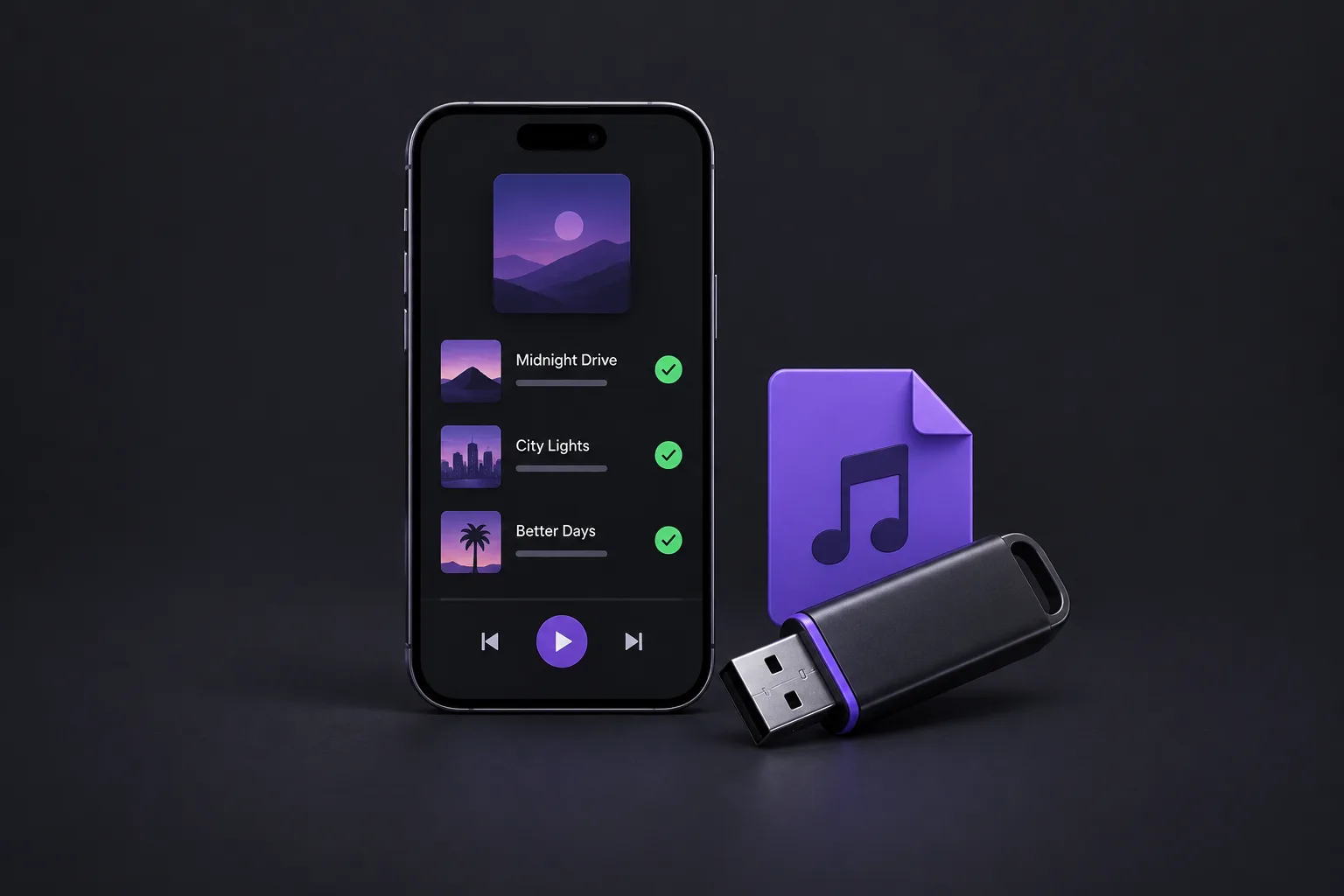

Spotify’s Local Files feature lets you listen to your own Suno songs alongside the rest of your music. Save the MP3s to your device, turn on Local Files in the Spotify app, and add the tracks to your everyday playlists.
Get the MP3s ready
If you already have the MP3s, skip to the Spotify setup below. To save a song, paste its Suno share link into our SunoSaver downloader and choose Download MP3. For several songs, use the Playlist Downloader, then extract the ZIP.
Keep the MP3s in a music folder you’ll use with Spotify.
Add the songs on Windows or Mac
Open the Spotify desktop app on Windows or Mac.
- Open your profile menu and choose Settings.
- Under Library or Your Library, enable Show Local Files.
- Enable the folder containing the MP3s, or use Add a source to select it.
- Open Your Library → Local Files and find a song.
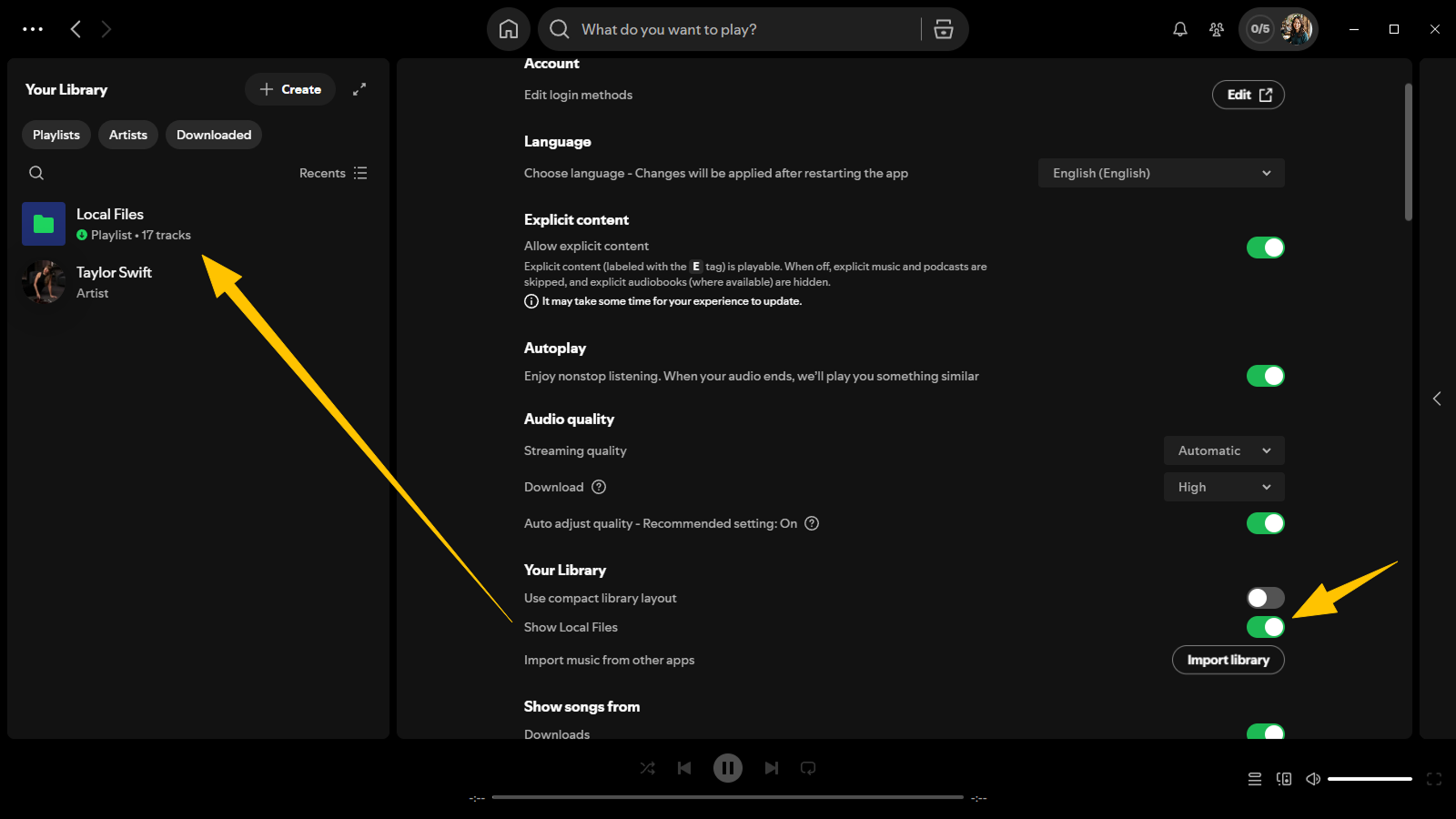
Menu labels can vary by app version; Spotify’s Local Files guide lists the current settings.
Add the songs on your phone
In Spotify, open your profile menu and go to Settings and privacy → Apps and devices. Turn on Local audio files and allow access to your audio files if prompted.
On iPhone: copy or move the MP3 into Files → Browse → On My iPhone → Spotify. If the Spotify folder isn’t listed, restart Spotify and check Files again.
On Android: save the MP3 from your browser or cloud storage to your phone.
Open Your Library → Local Files to find the songs. For another device or someone using a shared playlist, add a copy of the MP3s to that device too.
Put a local song in a playlist
In Local Files, open the song’s menu and choose Add to playlist. Create a playlist for your Suno favorites or add them to one you already use.
Play a few tracks to check the playlist. For offline listening, turn off Wi-Fi and mobile data and try them again.
If a song is missing or grayed out
- Folder missing on desktop: use Add a source in Spotify’s Library settings to select it.
- File moved or renamed: add it again from its current folder and replace the old playlist entry.
- MP3 won’t play in another app: try the checks in our download troubleshooting guide.
For a public release rather than personal listening, see our guide to releasing Suno music through DistroKid or LANDR.
Download Your Suno Music and Listen Anywhere
Save your Suno songs as MP3s, add them to Spotify Local Files, and keep your music ready for offline listening.
Download Suno Songs