
Quick answer
Put your favorite Suno versions in a playlist, download the selected songs with SunoSaver, and extract the ZIP if you used one. Keep the audio files on your phone or a compatible USB drive, then test playback without an internet connection before you leave.
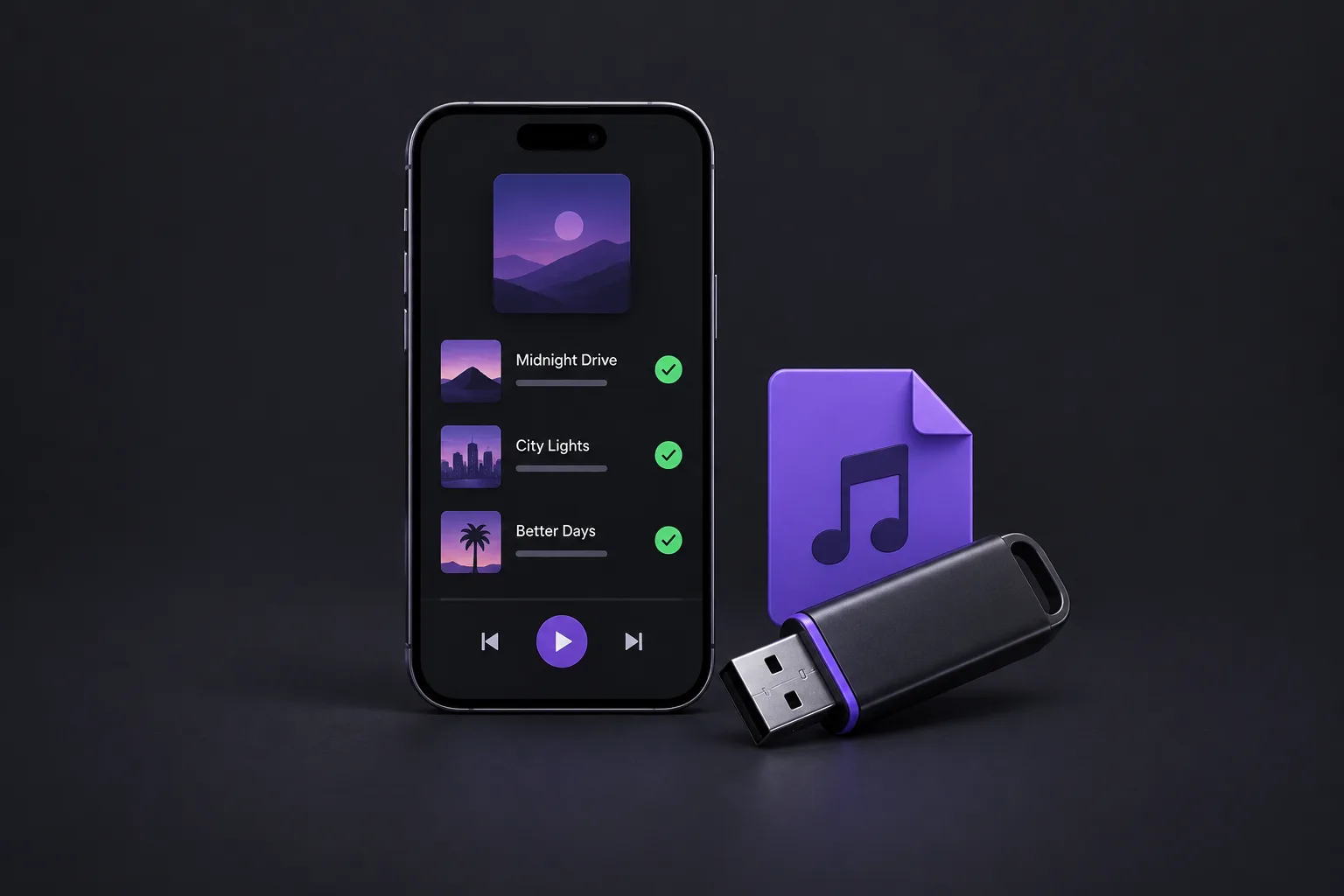
Saving a local copy lets you listen without opening Suno or relying on an internet connection. The setup depends on where you want to play the songs: a phone needs a player that can open local audio, while a car stereo needs compatible files and a supported USB drive.
Build a playlist for offline listening
Create a Suno playlist for the songs you want to replay. Give it a name that fits the occasion, such as Morning Commute or Driving Picks, and add your favorite version of each track.
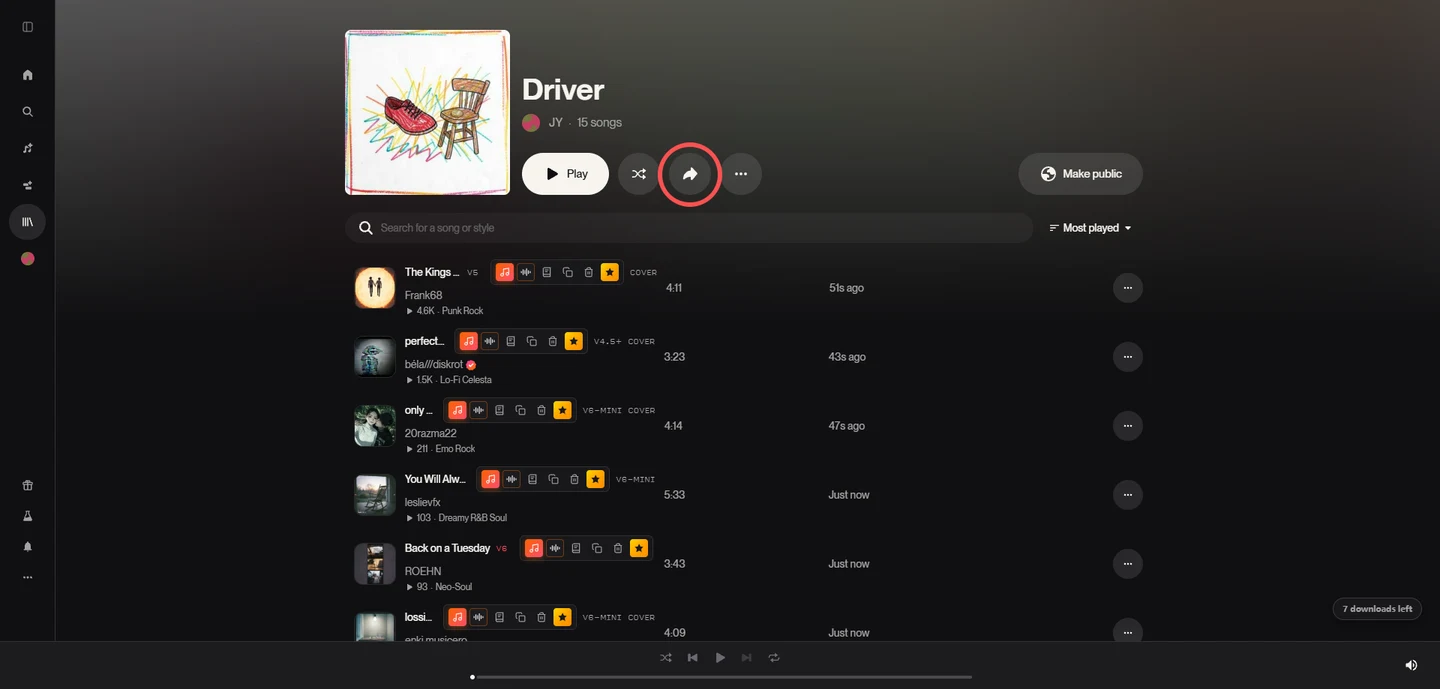
Use Suno's playlist controls to add your songs, then copy the playlist's link.
Before using a third-party downloader, check that the method and songs are permitted under Suno's current terms.
Download the playlist with SunoSaver
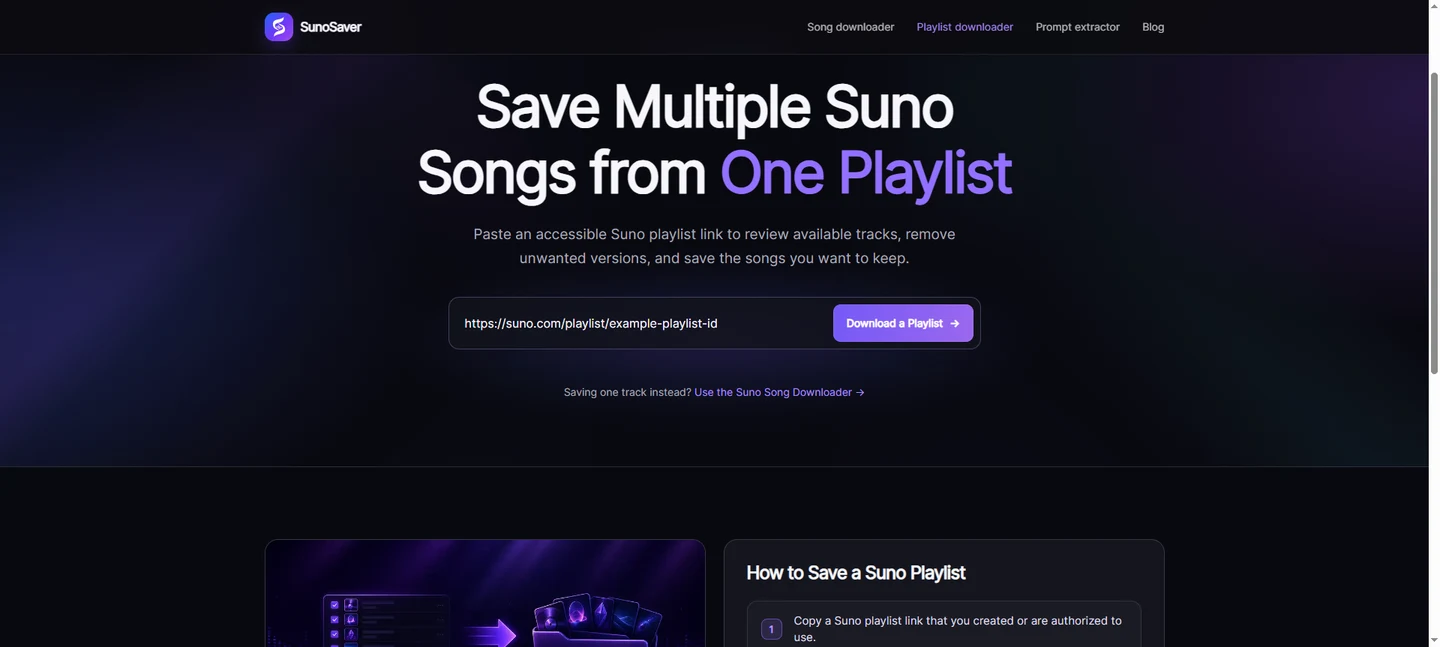
Open SunoSaver's Playlist Downloader to save the available tracks together:
Step 1: Paste the playlist link
Enter the playlist URL and click Download a Playlist.
Step 2: Review the song list
Check the returned titles and select the songs you want to save.
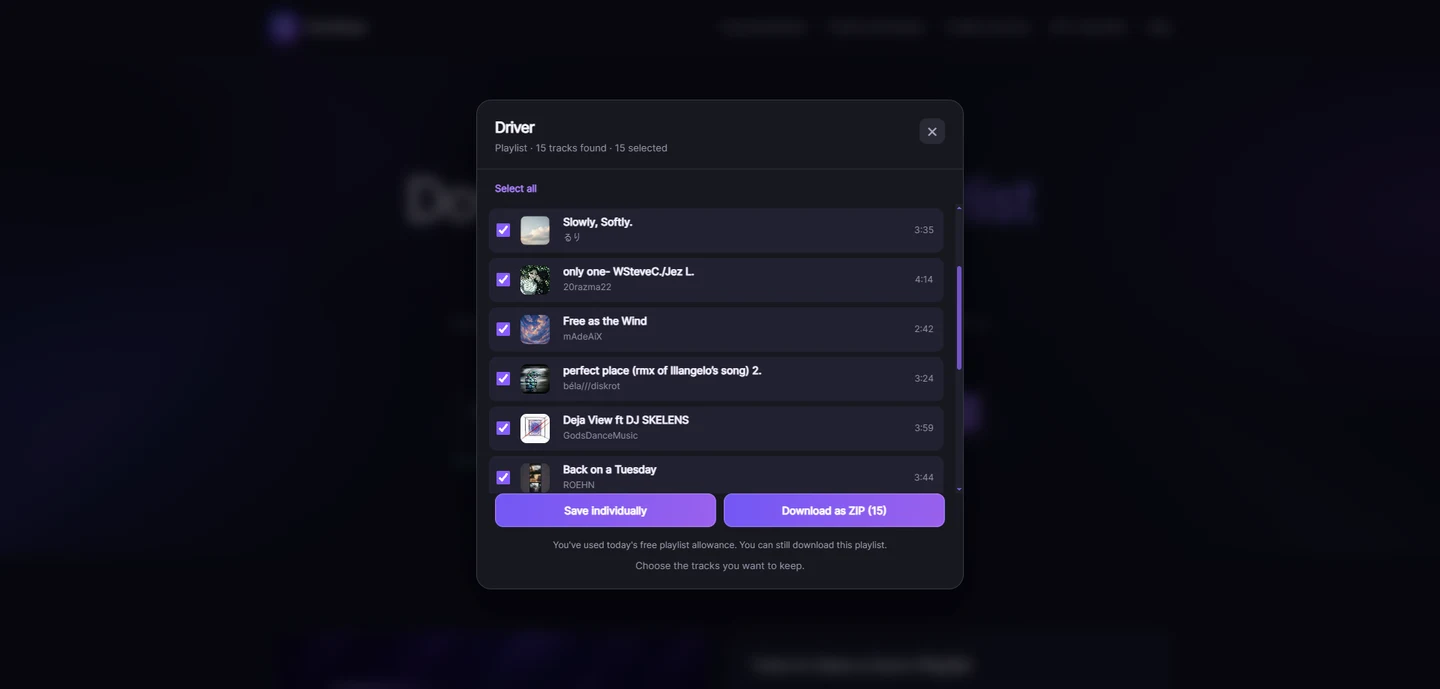
Step 3: Choose how to save them
Download the selection as a ZIP to keep the collection together, or save the songs individually.
Step 4: Check the files
Extract the ZIP if you used one, compare the audio files with your selection, and keep them in a folder named after the playlist.
If a track is marked unavailable, check the original playlist before retrying it. Our playlist download walkthrough covers the full process.
Take the songs into your everyday listening
On your phone, for commutes and walks
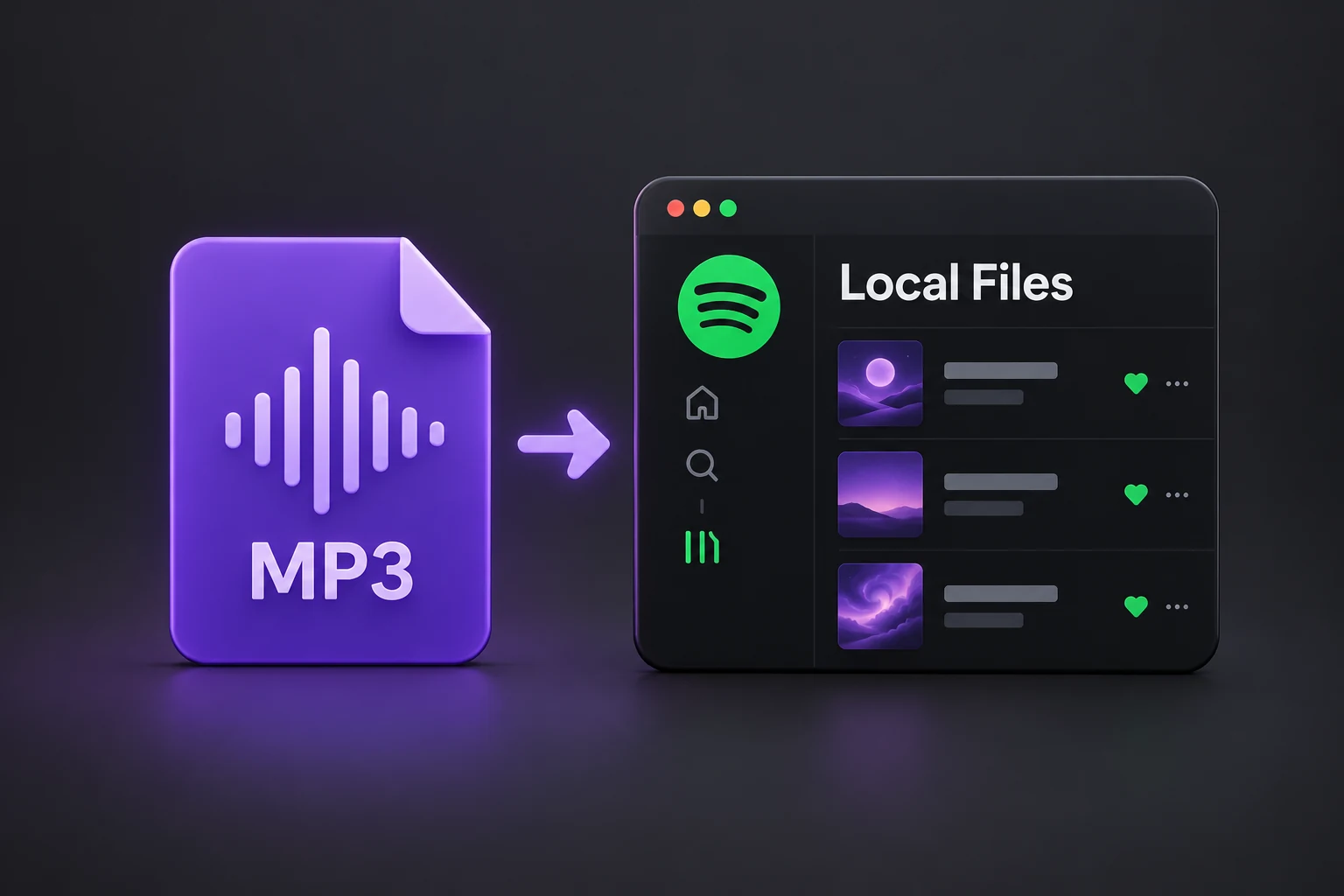
Transfer the extracted audio files from your computer, or download them on the phone. Open a music player that supports local files, add the tracks to a playlist, and set the listening order there.
To save the files directly on your phone, follow the iPhone and Android download steps first.
Android: find the files in Downloads or the folder you copied them to. Add that folder in your music player or refresh its library if the songs don't appear.
iPhone: find the files in Files, under iCloud Drive or On My iPhone, and import them into a player that accepts local audio. Make sure any files stored in iCloud are downloaded to the device before going offline.
On a USB drive, for the car
Copy the extracted audio files into a folder on a USB drive, then use a car stereo that supports USB music playback. Check the stereo's manual for the audio formats and USB file systems it accepts; compatibility varies by model. Connect the drive and choose USB as the audio source.
If your stereo sorts files by name, use a consistent numeric prefix, such as 01 - Song Title.mp3 and 02 - Song Title.mp3. Replace “Song Title” with each track's title. When adding songs, continue the numbering to keep the intended order.
Keep the playlist easy to browse
If an MP3 shows the wrong title or no artist in your player, open it in SunoSaver's MP3 Tag Editor. Correct the title and artist, and use a collection name such as Driving Picks in the Album field. A track number can help compatible players sort the songs.
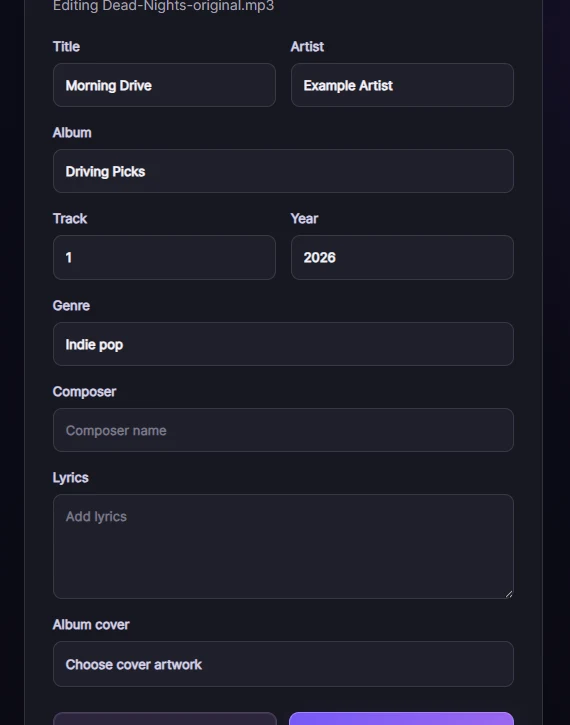
Click Save to download the edited copy, then reopen it in your player to check the displayed details.
Check the collection before you leave
On your phone, turn off Wi-Fi and mobile data, reopen the music player, and play a song. Skip to another track to confirm the playlist is using local files. For a USB collection, test it in the car while parked and check that the stereo finds the songs.
If you prefer listening within Suno itself, its mobile app also offers offline playlists.
Save your playlist for the next trip
Choose the songs you want to take with you and download the available audio, individually or as a ZIP.
Open Playlist Downloader