
You can save a Suno song as an MP3 on iPhone or Android without a computer. For your own songs, check Suno's Download menu first. This guide also shows how to save an available MP3 with SunoSaver in Safari or Chrome, then find and open the saved audio on your phone.
Start with a song you created or have permission to save. Use Suno's Download menu for your own songs, or follow the iPhone or Android steps for our SunoSaver song downloader.
Download your own songs from Suno
For a song in your own account, start with Suno's download controls:
- Sign in to Suno and find the song in your Library or Workspace.
- Open the song's More Actions (…) menu and select Download.
- Choose an available format and complete your phone's save prompt if one appears.
These are Suno's published download steps; the controls you see can vary by app or browser. If the app does not show the option, check the song on suno.com in your phone's browser.
Suno lists MP3 downloads for web and mobile. WAV is available to Pro and Premier subscribers on suno.com, while mobile downloads default to MP3. Your available options and download allowance depend on your account and the song.
After downloading, go to Find and open the downloaded file. If you are using a song link with SunoSaver instead, follow the browser steps below. SunoSaver does not connect to your Suno account; use Suno's own controls for a private song that requires you to sign in.
Download a Suno MP3 on iPhone with SunoSaver
Download the MP3 in Safari
- Open the song in Suno and use Share to copy its link.
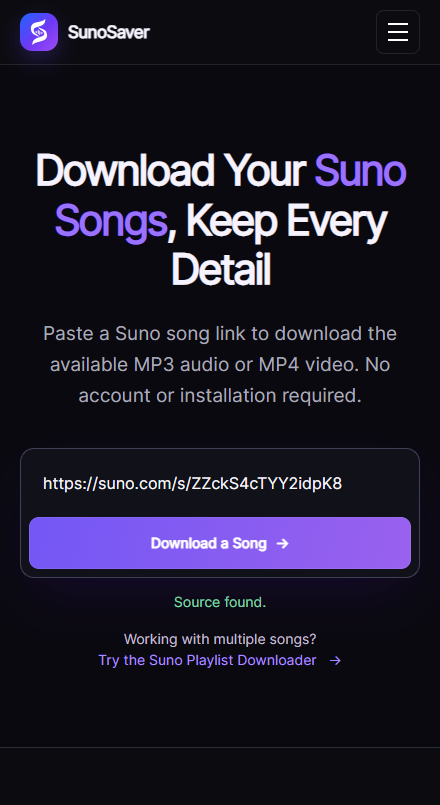
- Open Safari, go to SunoSaver, and paste the link into Suno song link.
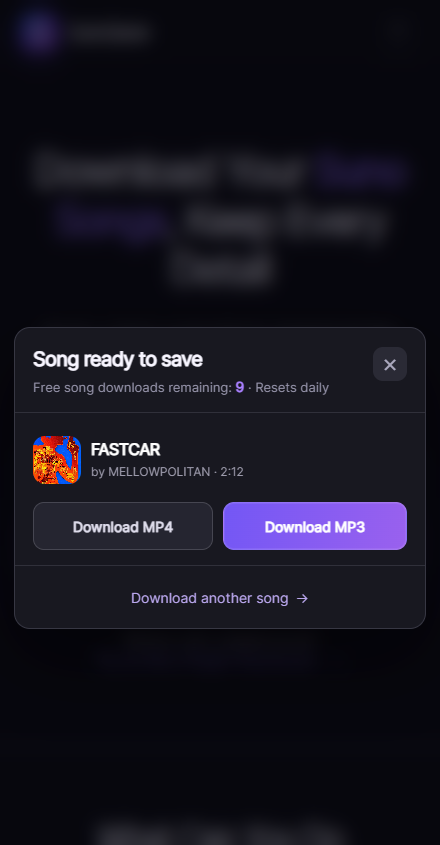
- Tap Download a Song. In the result, check the title and creator, then choose Download MP3.
- If Safari asks you to confirm the download, tap Download. Let it finish before closing the page.
If tapping the file opens an audio preview instead, use the preview's Share → Save to Files option when available. Choose a folder you can find again, then tap Save. Simply playing the preview doesn't confirm that a file has been saved.
Once the download finishes, find the MP3 in Files and open it to check the saved copy.
Download a Suno MP3 on Android with SunoSaver
Download the MP3 in Chrome
- Copy the song's share link from Suno.
- Open Chrome, visit SunoSaver, and paste the link.
- Tap Download a Song, check the returned track, and choose Download MP3.
- If Chrome shows a save prompt, confirm the filename and destination, then download the file.
Wait for Chrome to show that the download is complete, then open the saved MP3 from Downloads.
Find and open the downloaded file
On iPhone: check Files or Safari's download list
Open Files → Browse. Check iCloud Drive → Downloads, or On My iPhone → Downloads if Safari saves there. A custom download location takes precedence, so check Safari's download settings if neither folder contains the song.
For a file you just downloaded, Safari's Downloads button is a useful shortcut: open the list, find the completed MP3, and open it from there. Apple's download guide shows both routes.
Tap the MP3 to preview it. To put it in another folder, touch and hold it and choose Move. Saving an MP3 in Files does not automatically add it to the Apple Music library; use a player that can import local audio if you want a listening playlist.
On Android: check Chrome or your file manager
In Chrome, open ⋮ → Downloads and find the completed MP3. You can also open your phone's file manager—often called Files, Files by Google, or My Files—and look in Downloads. Use the filename to search if you chose a different location.
Open the MP3 from that list to play the saved copy. Chrome's Android guide explains the download list and saved-file controls.
Check the saved copy before you need it
- Open the MP3 from Files or Downloads, rather than from the Suno page.
- Check that it is the song you intended to save. Play it and seek to a later point to check that the audio opens and continues normally.
- If you need offline access, make sure any cloud-stored file is downloaded to the device. Turn off Wi-Fi and mobile data, then reopen the file to check that it plays without a connection.
Fix common mobile saving problems
The audio opens in a browser preview
A preview does not confirm that the file is saved. Follow the Safari save steps above if you are on iPhone. On Android, check Chrome's download list for a completed file before leaving the page.
The download is paused or failed
Read the status in the browser's download list. Resume the transfer if offered, or check the connection, free storage, and save location before retrying. For a specific error, use our download troubleshooting guide.
The download is complete, but you cannot find it
Open the completed item from the browser's download list, then check its location or search for the filename in your file manager. Check any custom folder you selected. Downloading the same file again is not usually needed to locate a completed copy.
The file opens, but your music app does not show it
Check whether the player supports local MP3 files and can access the folder containing the song. On iPhone, saving to Files does not add the song to Apple Music automatically. On Android, check the player's folder selection and audio-access permissions. If the file itself will not open, follow the unplayable-audio checks.
Download Suno Songs to Your Phone
Ready to save your next track? Open SunoSaver, paste the song link, and choose the available MP3. Once it's saved, open it from Files or Downloads so you know exactly where it is.
Open SunoSaver