
A lyric video lets listeners follow the words to your Suno song. Download the audio and lyrics with SunoSaver, then use CapCut to match each line to the vocal and export the finished video.
This guide uses CapCut on a computer. You’ll also need a cover image or background video.
Download the song and get the lyrics
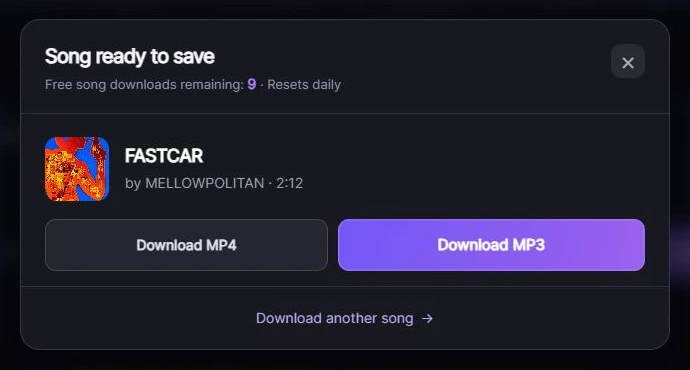
Open your chosen song in Suno and copy its share link. Paste it into the SunoSaver song downloader, select Download Songs, then choose Download MP3.
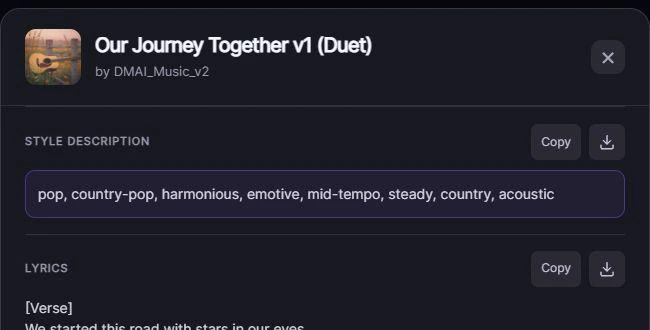
Next, paste the same link into SunoSaver’s Prompt Extractor and select Extract Style & Lyrics. Copy the lyrics from the song page or choose Download Lyrics (.txt).
Read the lyrics while playing the MP3. Match the text to the words you hear, including repeated phrases, and remove labels such as [Verse]. If the song page has no lyrics, use your own lyric sheet.
Set up the video in CapCut
Create a project and import the MP3 and your background. Place the audio at the start of the timeline and the image or footage on the video track. Extend the image or arrange enough footage to cover the song.
Set the canvas to 16:9 for a horizontal video or 9:16 for a vertical clip before adding text.
For a short clip, trim the song to the section you want before timing the lyrics.
Match each lyric line to the vocal
Use a separate text clip for each sung phrase, splitting longer lines at a natural pause.
- Find where the singing starts. Zoom into the timeline and listen for the start of the first sung word. Use the waveform as a guide, then pause at that point.
- Add the phrase. Add a text clip, paste the phrase, and align its left edge with the first sung word. For a sing-along, show the words slightly early.
- Set the duration. Drag the right edge to the end of the last sung note. Leave the screen clear during longer instrumental breaks.
- Continue through the song. Duplicate the text clip to keep the styling, replace the words, and adjust its start and end to match the next phrase.
For example, if a phrase runs from 12.4 to 15.1 seconds, place its text clip over that interval. If the next line starts at 16 seconds, leave a short gap.
Play through each change of lyric. If every line is early or late by the same amount, check the audio’s starting position and shift the lyric clips together. If the timing drifts as the song plays, adjust each clip’s start and end to match the recording.
Check repeated choruses separately, since pauses and held notes may differ.
Use automatic lyrics for a first pass
If Captions → Auto lyrics is available in your version and region, choose the song’s language and generate a draft. Compare the result with your saved lyrics, then correct any mistakes and adjust the timing. See CapCut’s lyric video guide.
Make the words easy to read
Use a clear font and keep one or two short lines in a consistent position. Add a shadow or dark text background if the words blend into the image.
Check that the lyrics are readable on a phone. Leave space for app controls along the bottom and right edge. Keep text animations short so each line is visible when the singing starts.
Export and check the finished MP4
Save your project, then select Export. Choose MP4, with H.264 video and AAC audio if those settings are available.
- For a horizontal version, export at 1920 × 1080.
- For a vertical version, export at 1080 × 1920.
- Use 30 fps for a still-image video. If you use footage, match its frame rate where possible.
For more export options, see YouTube’s recommended upload settings.
Play the exported MP4 from start to finish. Check that the lyrics stay in sync, no text is cut off, and the picture and sound continue to the end. Make any corrections in the project, then export again.
Ways to use your lyric video
Karaoke and sing-alongs
On-screen lyrics make it easier to sing along with your song. A version with an instrumental backing track also works for karaoke nights or singing practice.
Sharing the full song on YouTube
A full-length lyric video gives listeners a way to enjoy your song on YouTube and read along.
Short clips for TikTok, Reels, or Shorts
A chorus clip can introduce your song to new listeners, with the lyrics drawing attention to a memorable line.
You can also pair the lyrics with birthday photos or use the video for a classroom sing-along.
Get Your Song and Lyrics Ready
Download your song with SunoSaver and get its lyrics from the Prompt Extractor to start your lyric video.
Download Suno Songs