

You want a few songs from your Suno playlist on your computer, but not every alternate take and unfinished draft. Opening each track to download it separately gets old fast.
For a playlist-based bulk download, load the playlist link, keep the songs you want selected, and save that selection as individual files or one ZIP. You don't have to download the entire playlist.
If the songs are already in your Suno Library or Workspace, Suno also has its own multi-song download option. Here's where to start, and how to work from a playlist link instead.
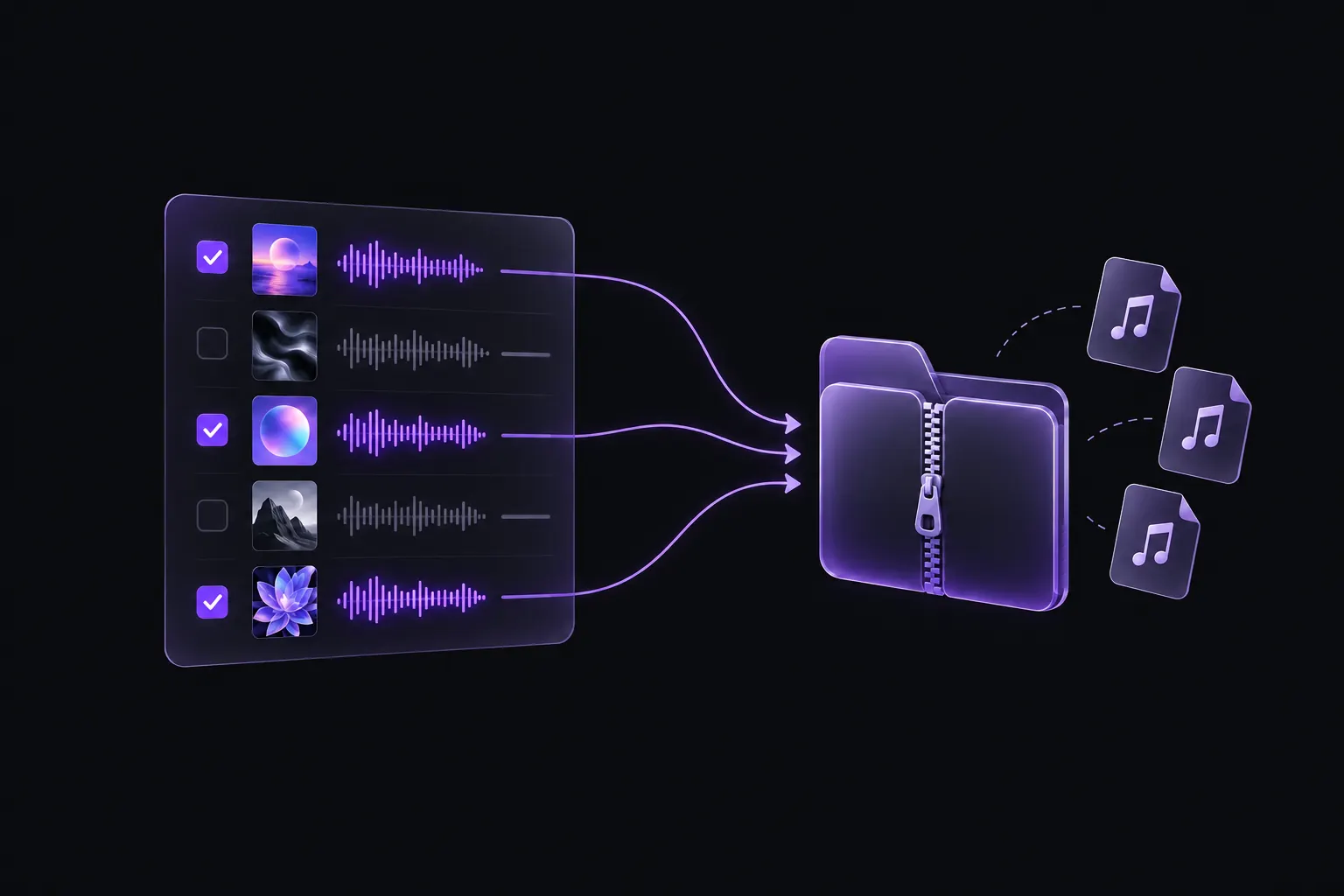
Can you download multiple songs directly in Suno?
Yes. On desktop, Suno's download instructions describe this process:
- In your Library or Workspace, hold Ctrl on Windows or Command on Mac while selecting songs. Use Shift to select a range.
- Right-click a selected song and choose Download All.
- Choose an available file type, then select Download. Suno packages the selected songs in a ZIP.
Use Suno's built-in download option when you're already working in your account. Here's how the current download allowance varies by account and workflow.
Suno's current download limits
| Account or workflow | Download allowance |
|---|---|
| Free — joined before September 3, 2026 | Up to 7 trial downloads; additional downloads can be purchased. |
| Free — joined on or after September 3, 2026 | Occasional trial downloads may be offered; downloads can also be purchased. |
| Pro | 20 download credits per month. |
| Premier | 60 download credits per month. |
| Suno Studio workflows | Not subject to these download limits. |
Starting with a playlist link? Use SunoSaver to load the track list and select the songs you want to save.
How to save selected songs from a playlist
Start with a playlist of songs you created or have permission to save. You'll need a link that SunoSaver can access; a private collection available only inside your account may not load.
1. Copy the playlist link
Open the playlist in Suno and copy its URL. Use the playlist page's link, not the link to a single song playing within it. A playlist URL contains /playlist/.
Open SunoSaver's Playlist Downloader, paste the URL into Suno playlist link, and click Download a Playlist.
2. Keep only the songs you want
When the results open, the available downloadable tracks are already checked. Uncheck any songs you want to leave out. This changes your download selection, not the original Suno playlist.
Look at the selected count before continuing. “25 tracks found” and “3 selected” mean different things: the download actions apply to the three checked songs, not all 25.
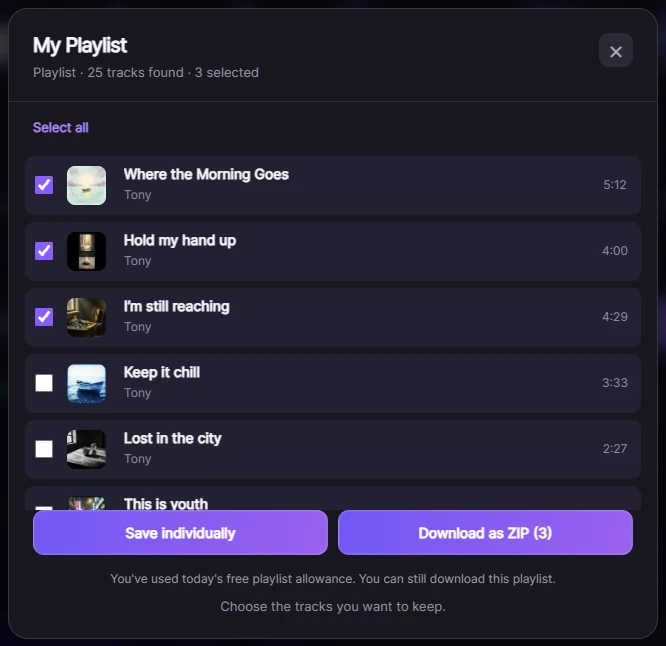
If several tracks have similar names, check the versions in Suno before saving. It's easier to leave out the wrong take here than sort it out in your Downloads folder later.
3. Save the selection together or separately
Both buttons use the same checked tracks:
- Download as ZIP collects the selection into one archive. Choose it when you want to keep or move the songs together.
- Save individually starts separate file downloads for the selection. Choose it when you want the songs as individual files without extracting an archive.
You don't need a ZIP to download several songs. It simply changes how the files arrive. If your browser asks whether SunoSaver may download multiple files, allow it only if you intended to use Save individually.
Keep the results window open while the files are being prepared, and read the completion message. A finished ZIP may contain fewer songs if some files could not be retrieved.
4. Check what arrived
Open your browser's downloads list. If you chose ZIP, extract it into a folder first; on Windows, right-click and choose Extract All, or double-click the archive on Mac.
Compare the files with your selected tracks, then open a song to check that it plays. If a file is missing, return to the results and select just that track for a retry instead of downloading the whole set again.
What if the batch is incomplete?
First work out where the song went missing:
- It isn't in the results: check the original playlist and confirm the song is still accessible. Loading a playlist doesn't guarantee that every track can be retrieved.
- It was selected, but isn't in the download: read the completion message and retry that song separately. For individual downloads, also check whether the browser blocked additional files.
- The ZIP is saved, but your player won't open it: extract the archive and open the audio files inside.
For the broader walkthrough, including playlist access checks, see How to Download a Suno Playlist.
Frequently asked questions
Do I need a browser extension?
No. This SunoSaver workflow runs on the website: paste a playlist link, review the songs, and choose a download option. You don't need to install an extension.
Can I use this to bulk download WAV files?
The playlist results currently offer individual downloads and ZIP packaging, not a batch WAV export option. If you need WAV, check the export options available in your Suno account. A ZIP does not convert the files inside it to WAV. See Suno MP3 vs WAV if you're deciding which format you need.
Save Your Selected Songs
Have a playlist ready? Open SunoSaver's Playlist Downloader, keep the songs you want checked, and save them together or separately.
Open Playlist Downloader